How to Increase Shopify Store Speed (PageSpeed Insights)
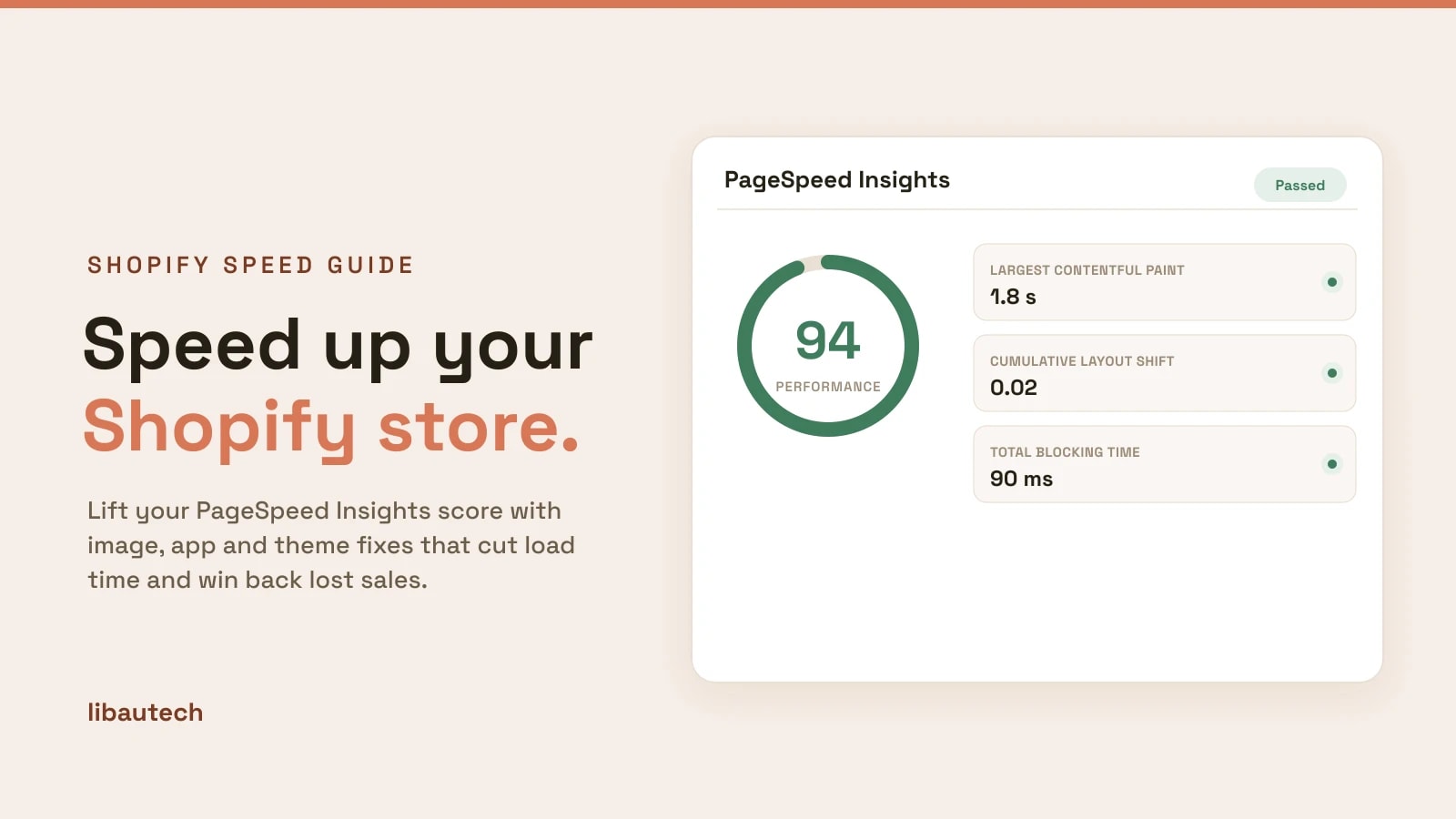
A slow Shopify store loses sales and rankings: shoppers leave pages that take more than a few seconds to load, and page speed is part of how Google ranks you. The good news is that most Shopify slowness comes from a short list of fixable causes, mainly heavy images, too many apps, and bloated theme code. This guide shows how to measure your speed, then the fixes that lift your PageSpeed Insights score the most.
Key takeaways
- Measure first with Google PageSpeed Insights and Shopify's own speed report, so you fix what actually matters.
- The three biggest wins are almost always images, apps, and theme code, in that order.
- Compress and correctly size images, remove apps you no longer use, and stick to a fast modern theme.
- Speed is a Google ranking and Core Web Vitals factor, so a faster store helps conversion and SEO together.
How to measure your Shopify store speed
Do not guess. Get a baseline from two places, then re-test after each change.
- Google PageSpeed Insights. Enter your store URL for a score out of 100 plus your Core Web Vitals: Largest Contentful Paint, Cumulative Layout Shift and Interaction to Next Paint. Test your homepage and a product page, on mobile especially.
- Shopify's online store speed report. In your Shopify admin under Online Store, Shopify gives a speed score based on Lighthouse. It differs from PageSpeed Insights, so use it for trend, not as an absolute.
Test on mobile first, because most traffic is mobile and mobile scores are usually lower.
Fix your images (the biggest win)
Oversized images are the number one cause of slow Shopify stores.
- Compress every image before upload, and let Shopify serve modern formats like WebP, which it does automatically for most themes.
- Size images correctly. Do not upload a 4000px photo to display at 600px. Resize to roughly the size it appears.
- Lazy-load below-the-fold images so the browser loads them only as the shopper scrolls. Most current themes do this by default.
- Give the hero image priority and set width and height on images to prevent layout shift, which improves your CLS score.
Cut the apps you do not need
Every app can inject JavaScript and CSS that loads on every page, even after you stop using it.
- Uninstall unused apps rather than just disabling them, and check the theme for leftover code from apps you have removed.
- Prefer apps built on Online Store 2.0 theme app blocks, and where possible the Built for Shopify standard, which are lighter.
- Do not stack apps that do the same job. One review app, one upsell app, one popup, chosen deliberately.
If you do need optimization tooling, compare the options in our roundup of the best Shopify performance apps.
Tidy your theme
- Use a fast, current theme. Modern Shopify themes such as Dawn and Horizon are built for speed. Old or heavily modified themes are often the problem.
- Limit custom fonts to one or two, and let the theme load them efficiently.
- Go easy on sliders and autoplay video on the homepage, which are heavy and hurt LCP.
- Remove unused third-party scripts, such as old tracking pixels and chat widgets you no longer run.
Your Shopify speed checklist
- Compress and correctly size every image, hero image prioritized.
- Uninstall apps you do not use, and clean their leftover code.
- Run a fast modern theme with minimal custom code.
- Keep custom fonts and homepage sliders to a minimum.
- Remove old pixels and scripts.
- Re-test on PageSpeed Insights, mobile first, after each change.
Because speed feeds Core Web Vitals, this work also lifts your search rankings. Pair it with the Shopify SEO guide and the Shopify SEO checklist to get the full ranking benefit.