How to Add a Video to Your Shopify Store (2026)
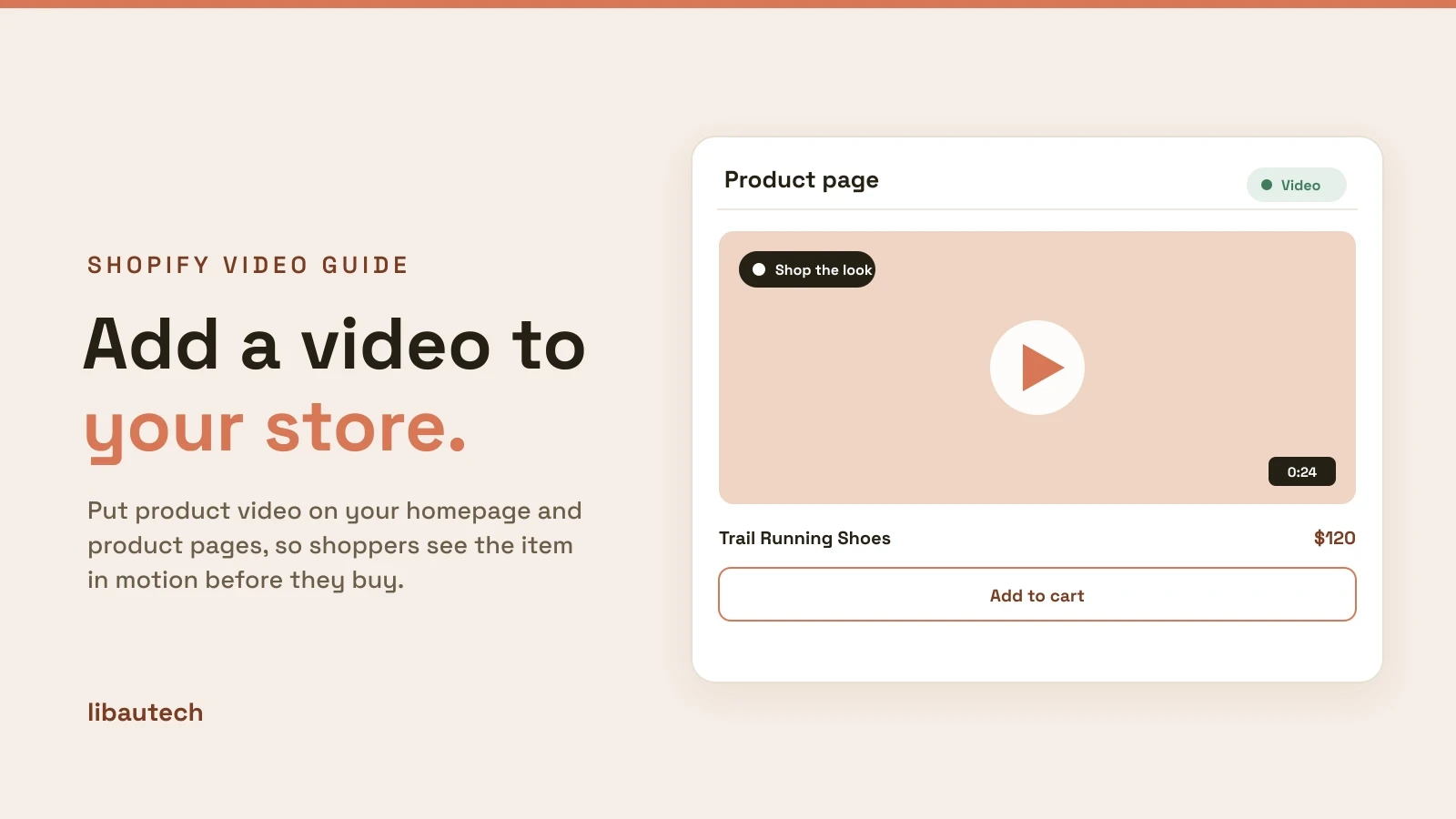
Adding a video to your Shopify store lets shoppers see a product in motion, which builds confidence and lifts conversion. You can do it natively in the theme editor, by uploading a video to a product page or adding a video section to your homepage, embed a YouTube video, or use a shoppable video app for interactive, shop-the-look clips. This guide covers each method and when to use it.
Key takeaways
- For a product page, upload the video to the product's media, the same place as its images.
- For the homepage or a landing page, add a video section in the theme editor and either upload a file or paste a YouTube or Vimeo link.
- Uploaded (hosted) video plays inline with no third-party branding; a YouTube embed is easy but shows YouTube's player.
- For shoppable video, where viewers can tap products in the clip, use a video app such as Libautech Shoppable Videos.
Where you can add video on Shopify
Shopify supports video in several places, and the right one depends on the goal.
- Product page, in the product's media gallery, to show the item in use.
- Homepage or landing page, as a video section or background, to set the brand tone.
- Product description or a page, as an embedded clip within the text.
- A shoppable video feed, added by an app, where shoppers buy from the video itself.
How to add a video to a product page
Product videos live alongside the product images, so they appear in the same gallery.
- In your Shopify admin, go to Products and open the product.
- In the Media section, click Add media, or Add from URL to bring in a YouTube or Vimeo link.
- Upload your video file, or paste the link, and let it process.
- Drag it to the position you want in the gallery. It now shows on the product page next to the photos.
Uploaded files play inline in Shopify's own player with no outside branding. A URL embed is quicker but shows the source platform's player.
How to add a video section to your homepage
Homepage video is added in the theme editor, no code required on Online Store 2.0 themes.
- Go to Online Store > Themes and click Customize.
- On the homepage, click Add section and choose Video (most modern themes, such as Dawn and Horizon, include one).
- Either upload a video file or paste a YouTube or Vimeo URL, and set a cover image.
- Add a heading or text if the section supports it, then Save.
Keep homepage video light and consider a still cover image, because autoplay video is heavy and can slow your page.
How to embed a YouTube video on Shopify
To place a YouTube video inside a product description or a page, use the rich text editor: click the Insert video or embed option and paste the YouTube link, or paste the YouTube embed code into the HTML view. The video then appears within your text. This is the simplest route, with the trade-off that it carries YouTube's player and suggested videos.
Shoppable video: let shoppers buy from the clip
Native video shows the product; a shoppable video lets viewers tap it and add to cart without leaving the video. For that, use a video app. Our Libautech Shoppable Videos app turns clips, including TikTok and Instagram-style content, into a shoppable, mobile-first feed. To compare tools, see the best Shopify shoppable video apps, and for a specific walkthrough, how to add shoppable TikTok videos to your Shopify store.
Video best practices
Keep it short. Fifteen to thirty seconds holds attention on a product page. Save long-form for a dedicated section.
Design for mobile and silence. Most viewers are on phones with sound off, so lead with visuals and add captions.
Compress before upload. A heavy video hurts load time, so export at a sensible resolution and file size.
Use a strong cover image. The still frame is what most people see first, so make it count.
Add one clear product video where it matters most, usually the product page, and you give shoppers the confidence to buy that photos alone cannot.