How to Set Up Post-Purchase Upsells on Shopify
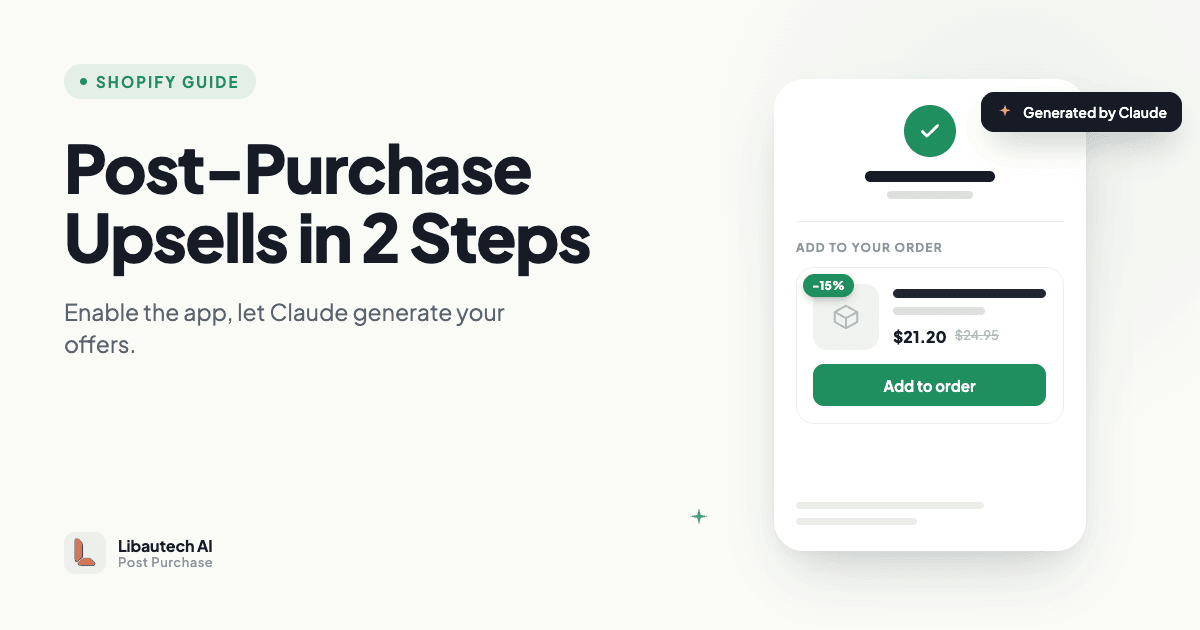
Post-purchase upsells are one of the few ways to add revenue without spending more on traffic. The customer has already paid. The order is confirmed. An extra offer shown on the thank-you page costs you nothing in acquisition and adds straight to the order total when accepted.
The problem with most post-purchase apps is the setup. You pick trigger conditions, choose which products to upsell, set discount percentages, build downsell offers, and configure display rules before a single offer goes live. For a store with hundreds of products, that is hours of work.
Libautech AI Post Purchase removes that step. You enable the app, and Claude generates the upsell offers for you. There are two steps total and the whole thing takes a few minutes. If you are new to the format, our guide to what a one-click upsell is covers the basics first.
Step 1: Enable the App in Shopify Checkout Settings
Shopify lets one app occupy the post-purchase page slot at a time, so you need to tell Shopify that Libautech AI Post Purchase is the app that owns it.
From the app, click Open checkout settings. This takes you to the Shopify checkout configuration page. Scroll down to the Post-purchase page section. Select Libautech AI Post Purchase from the dropdown and save.
Go back to the app dashboard. The first step now shows as done. That is the entire Shopify-side setup. There is no theme code to edit and no extension to install manually.
Step 2: Let Claude Generate Your Upsell Offers
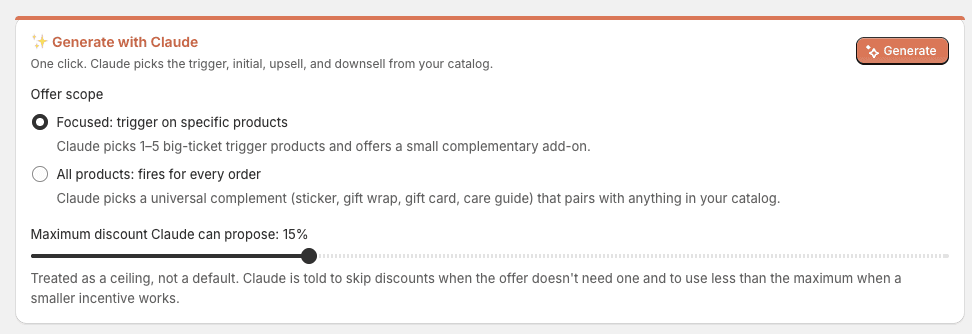
This is where the app differs from every other post-purchase tool. Instead of building offers by hand, Claude does it for you.
You decide the scope first. You can point Claude at your full catalog, or narrow it to a few specific products. If you have items that are slow-moving or overstocked, those are good candidates to push through post-purchase offers, and you can target just those.
Next you set the maximum discount. You can allow up to twenty percent. Claude works within that ceiling and sets dynamic discounts per offer, choosing the level that protects your margin while still giving the customer a reason to accept.
Then you click generate. Claude reads your products and builds the post-purchase upsell offers automatically. This part takes a few minutes. Once it finishes, the offers go live on your post-purchase page and you can review them on the dashboard.
What Happens After Setup
Once the offers are live, every customer who completes a checkout sees a relevant upsell on the thank-you page. If they accept, the product is added to the order they just placed, with no second checkout and no re-entering payment details. That single-click accept, on an order that already exists, is exactly what makes post-purchase offers convert. We break down that flow in how to add a one-click upsell after checkout.
You manage everything from the dashboard. The generated offers are visible there, and you can re-run generation whenever your catalog changes or you want to refresh what is being shown.
Why Two Steps Instead of Nine
Manual post-purchase tools give you control at the cost of time. You configure each trigger, each offer, each discount, each fallback. That control matters for some stores, but for most merchants the setup friction is the reason post-purchase upsells never get launched at all.
The AI approach flips the default. Offers exist from day one because Claude builds them. You are not staring at an empty offer builder deciding which of your three hundred products to pair with which. You set a scope, set a discount ceiling, and let the model handle the combinations.
If you later want tighter control over specific products, you can narrow the scope and regenerate. The starting point is a working set of offers rather than a blank configuration screen.
What a Post-Purchase Upsell Is Worth
Before you launch, it helps to size the upside. Put in your monthly orders, the share of customers who accept, and what an accepted offer adds, to see what a post-purchase upsell is worth on your store.
Extra revenue a month
$1,000
Extra revenue a year
$12,000
That is about 50 accepted offers a month at $20 each, all of it added after the sale is already won, so it carries no risk to the original order. It is gross added revenue before any offer discount. You can run the post-purchase offer free with Libautech AI Post Purchase.
Get Started
If you have been meaning to launch post-purchase upsells but never got past the setup, this is the version that removes the excuse. Enable the app, let Claude generate the offers, and start adding revenue to orders you have already won.
Get the app: apps.shopify.com/post_purchase_remix
Related guides: How to add checkout upsells, Best post-purchase upsell apps, Post-purchase funnel case study and How to upsell on Shopify.