How to Add a One-Click Upsell After Checkout on Shopify
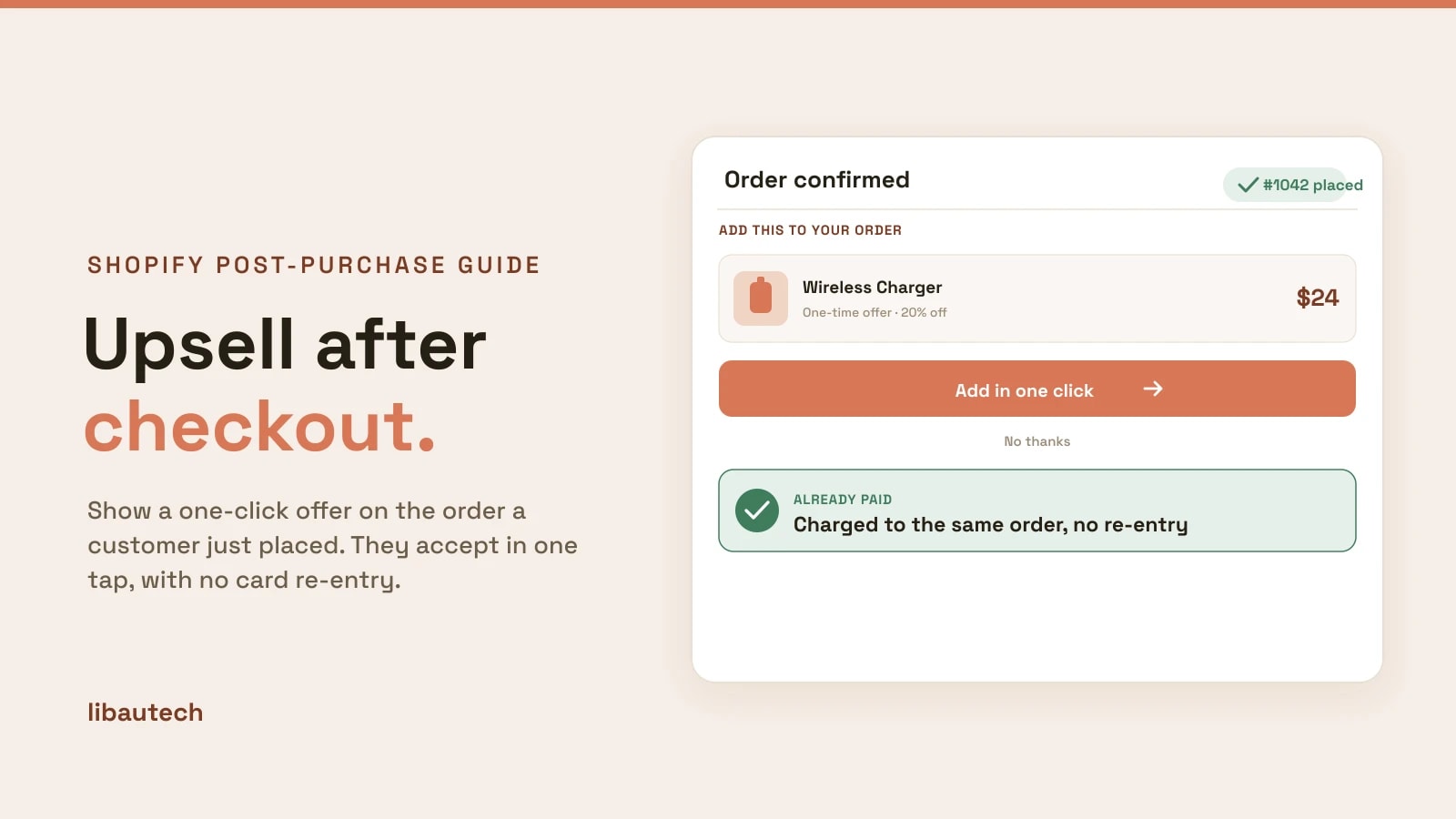
Yes, you can add an upsell after a customer has already placed and paid for their order, and it is one of the highest-converting offers you can run. The trick is that you do not edit the order they just completed. Instead, Shopify shows a new one-click offer that attaches to that same order, so the customer can accept with a single tap and no second checkout. The order is already paid, their details are already on file, and the extra item is simply added on.
Key takeaways
- You cannot add items to an order a customer already submitted, but you can show a fresh offer that links to it. Accepting adds the item to the same order with no re-entry of payment.
- The best moment is the post-purchase page, the screen shown between payment and the final thank-you page. It is the only place a true one-click accept is possible.
- You can also upsell later on the order status page and by follow-up email, but those need the customer to come back and usually re-enter payment.
- The fastest free way to turn this on is Libautech AI Post Purchase, which is free forever and lets Claude build the offers for you.
Can you upsell after an order is placed?
You can, and you should, but not by changing the order itself. Once a customer submits checkout, that order is locked: it is paid, it is queued for fulfilment, and adding a line item to it by hand would mean charging their card again. What you can do instead is present a new offer the moment the order is confirmed, and let the customer accept it in one click so it joins the order they just placed.
This is what a post-purchase upsell does. It is different from an in-cart or product-page upsell, such as an order bump, which happens before the customer pays. A post-purchase offer happens after, on an order that already exists, which is exactly why it feels effortless to the shopper and why it does not risk the sale you already won. If you want the definition first, see what a one-click upsell on Shopify is.
The three places you can upsell after checkout
Once the order is placed, there are three moments left to make an offer. They are not equal: only the first is a genuine one-click accept.
| Where | When | One click? | Best for |
|---|---|---|---|
| Post-purchase page | Right after payment, before the thank-you page | Yes, true one click | The highest-converting offer, added to the same order |
| Order status page | When the customer checks their order later | Partly, usually a new checkout | Repeat visits while they wait for shipping |
| Follow-up email | Hours or days after the order | No, a fresh checkout | Reorders and related products over time |
Post-purchase page. This is the screen Shopify shows between payment and the final order confirmation. Because payment already went through, an offer here can be accepted with one click and no card re-entry, and the item is added to the order that was just placed. Only one app can hold this slot on your store at a time.
Order status page. The page a customer lands on from their confirmation link. You can place offers here for when they return to track shipping, but accepting typically starts a new checkout rather than attaching to the original order.
Follow-up email. A message sent after the order that links back to a fresh offer. Useful for reorders and winning back attention, but it is a new purchase, not a one-click add-on to the order they already placed.
Why the one-click matters
The reason the post-purchase page converts is friction, or the lack of it. On every other offer, accepting means adding to cart and going through checkout: shipping details, payment, confirmation. After the order is placed, all of that is already done. The customer taps accept, the item joins the paid order, and they are back to the thank-you page. Nothing is asked of them again.
That is also why it is safe. The offer appears after the sale is complete, so a customer who ignores it still keeps their original order. There is no way for a post-purchase upsell to cost you the checkout you already earned, which is not true of aggressive pre-purchase pop-ups.
How to add a one-click upsell after checkout
You need one app that owns the post-purchase slot and builds the offer. The lightest way to do it is Libautech AI Post Purchase, which is free forever, with no order caps and no revenue share. You enable it in your Shopify checkout settings so it holds the post-purchase page, then let Claude generate the offers from your catalog instead of building each one by hand.
The full walk-through, with the exact checkout setting and the offer generation step, is in our guide to setting up post-purchase upsells on Shopify. At a high level it is two steps: point Shopify at the app, then generate the offers.
What a post-purchase upsell is worth
A one-click offer on an order that is already placed adds revenue you would not have captured otherwise. Put in your monthly orders, the share who accept, and what an accepted offer adds, to size it for your store.
Extra revenue a month
$1,000
Extra revenue a year
$12,000
That is about 50 accepted offers a month at $20 each, all of it added after the sale is already won, so it carries no risk to the original order. It is gross added revenue before any offer discount. You can run the post-purchase offer free with Libautech AI Post Purchase.
Common mistakes to avoid
Trying to edit the placed order. You do not add the item to the old order by hand, which would re-charge the customer. Let the post-purchase offer attach it automatically on accept.
Putting the offer before payment. An offer shown in the cart or at checkout is not a post-purchase upsell and can distract from the sale. Keep the after-checkout offer for after checkout.
Making the offer a chore. If accepting sends the customer back through a full checkout, you have lost the one-click advantage. Use the post-purchase page so accept is a single tap.
Discounting too hard. The customer is already buying, so the offer only needs a small nudge. A modest discount protects your margin while still lifting the order.