How to Add Product Recommendations on Shopify
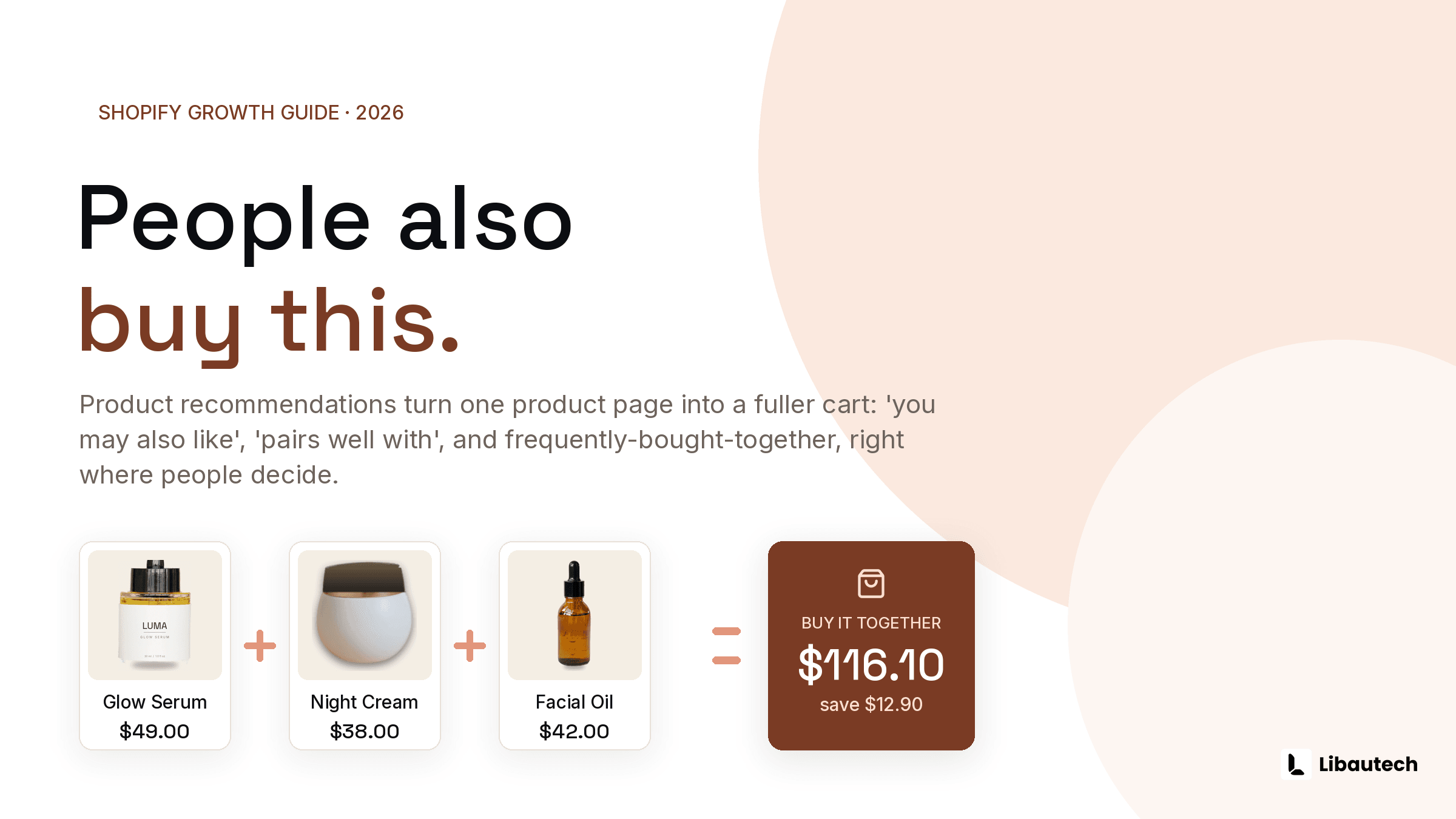
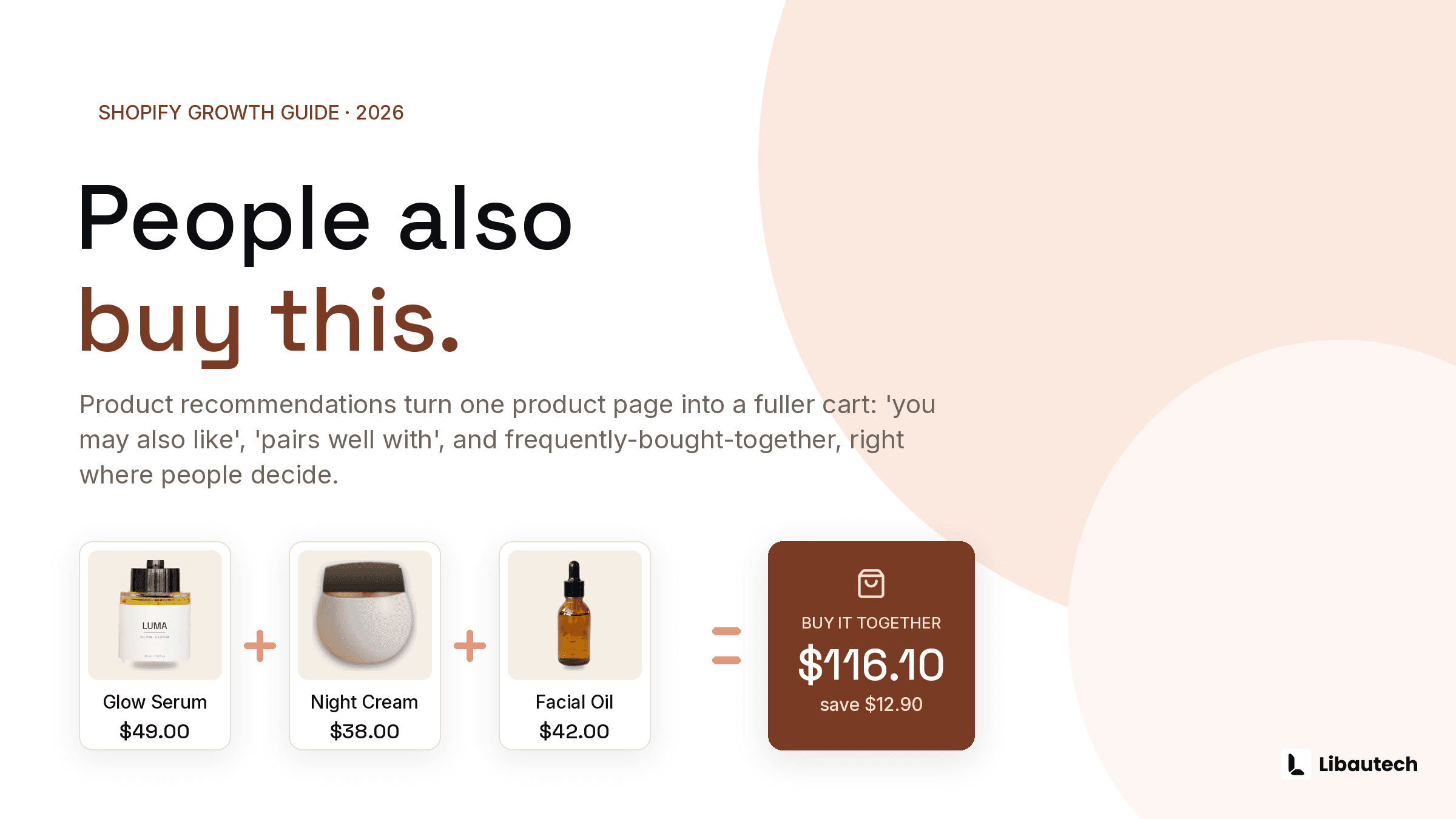
You can add product recommendations to Shopify product pages in 3 ways: your theme's built-in related products section, Shopify's free Search & Discovery app for manual control, or an upsell app like Libautech: Bundles & Upsell for recommendations that carry a discount and a combined add to cart. The right method depends on whether you want the recommendation to just be visible or to actively raise order value.
Last verified: July 2026.
TLDR
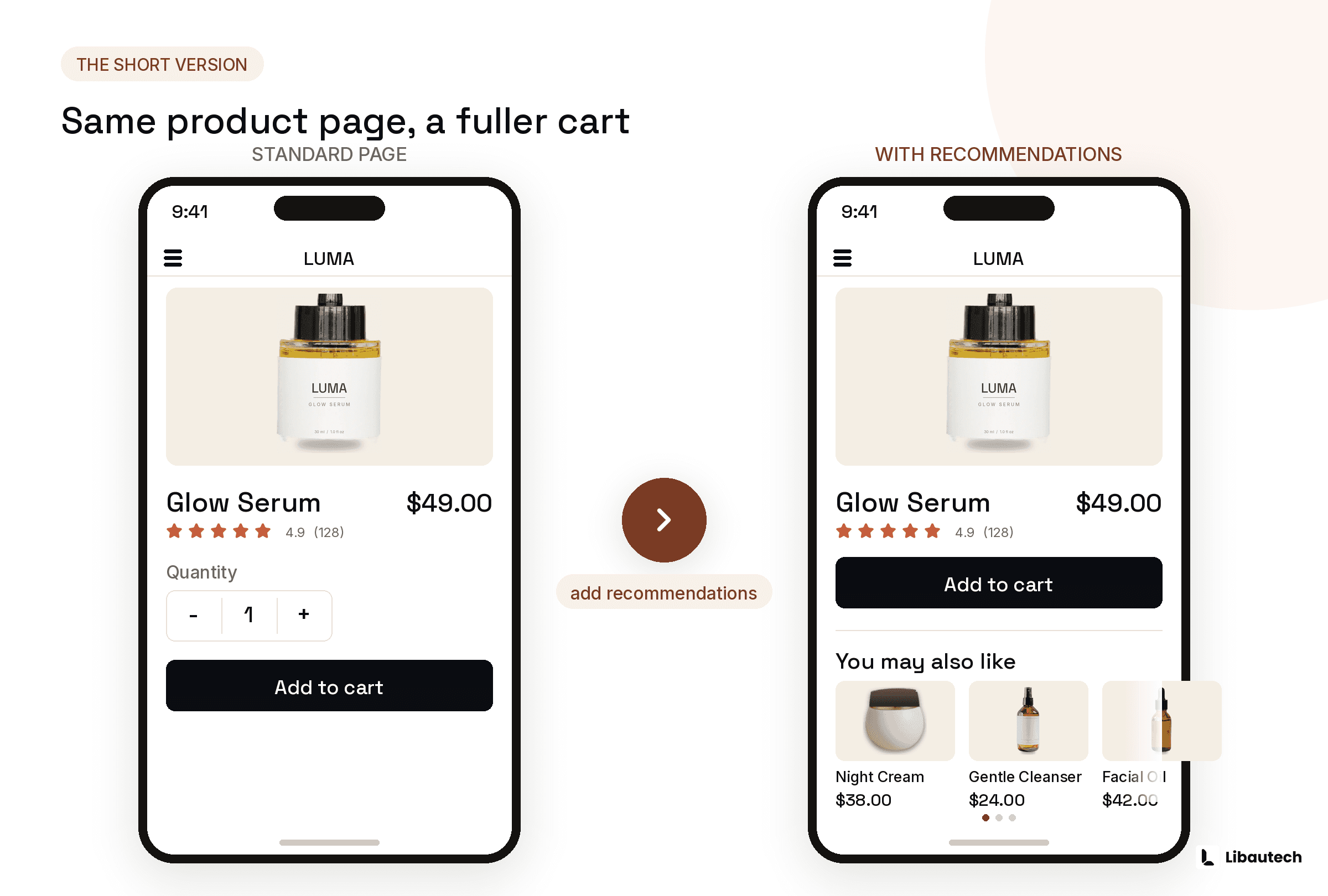
- Theme section: fastest, free, shows Shopify's automatic related products, no discounts or control
- Search & Discovery app: free, lets you hand-pick which products appear as recommendations
- Upsell app: adds discounts, frequently bought together pairing, add-ons, and revenue tracking
Method 1: Turn on your theme's recommendation section
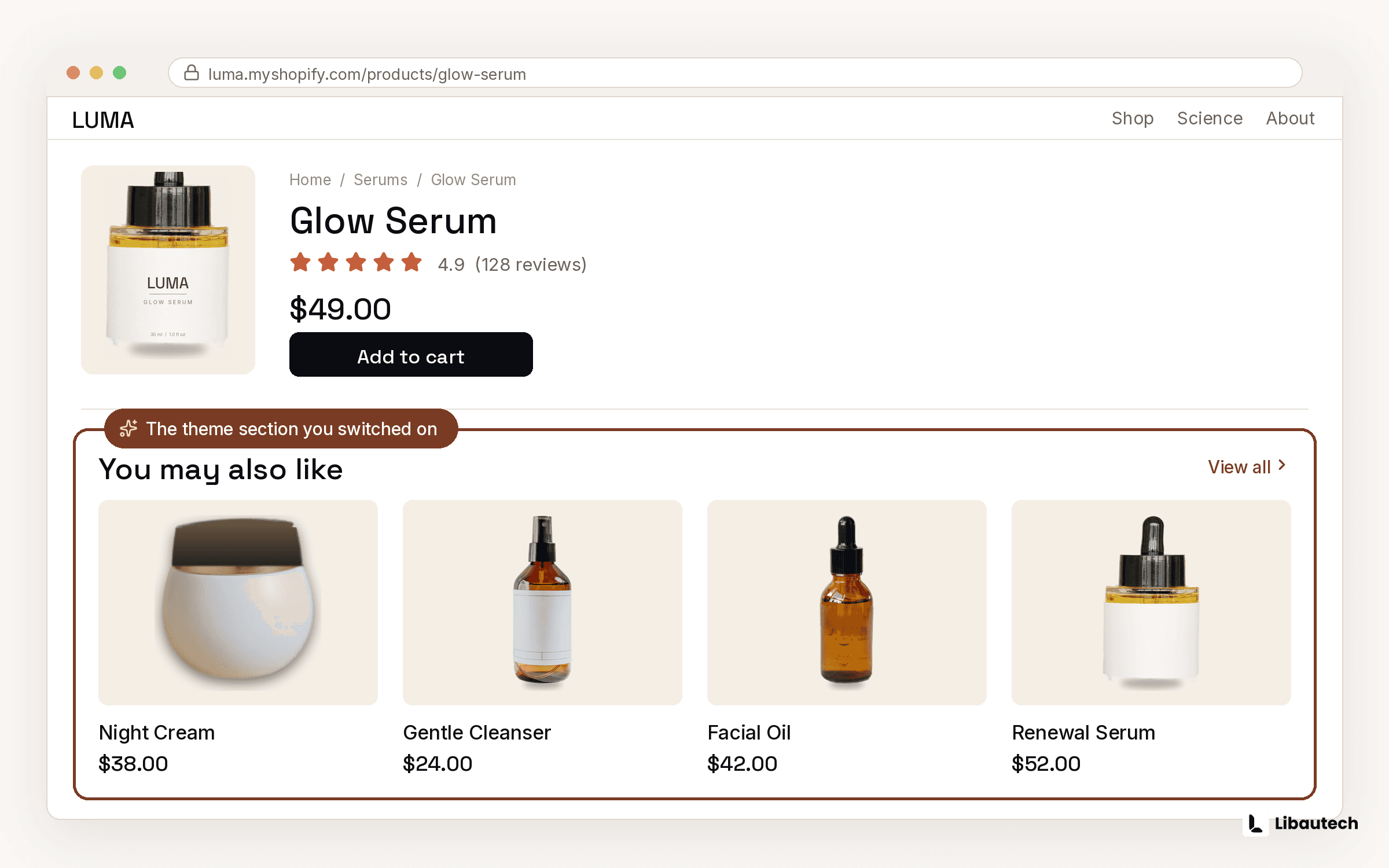
Most modern Shopify themes ship with a related products or "You may also like" section powered by Shopify's product recommendations API.
- In Shopify admin, go to Online Store, then Themes, and click Customize.
- Open any product page from the page selector at the top.
- Click Add section in the left sidebar and look for Related products or Product recommendations.
- Position it below the product description and click Save.
Shopify's algorithm picks the products based on purchase data and product descriptions. The limitation is control: you cannot choose the products, add a discount, or let shoppers add the pair in 1 click. It is visibility, not an offer.
Method 2: Control recommendations with Shopify Search & Discovery
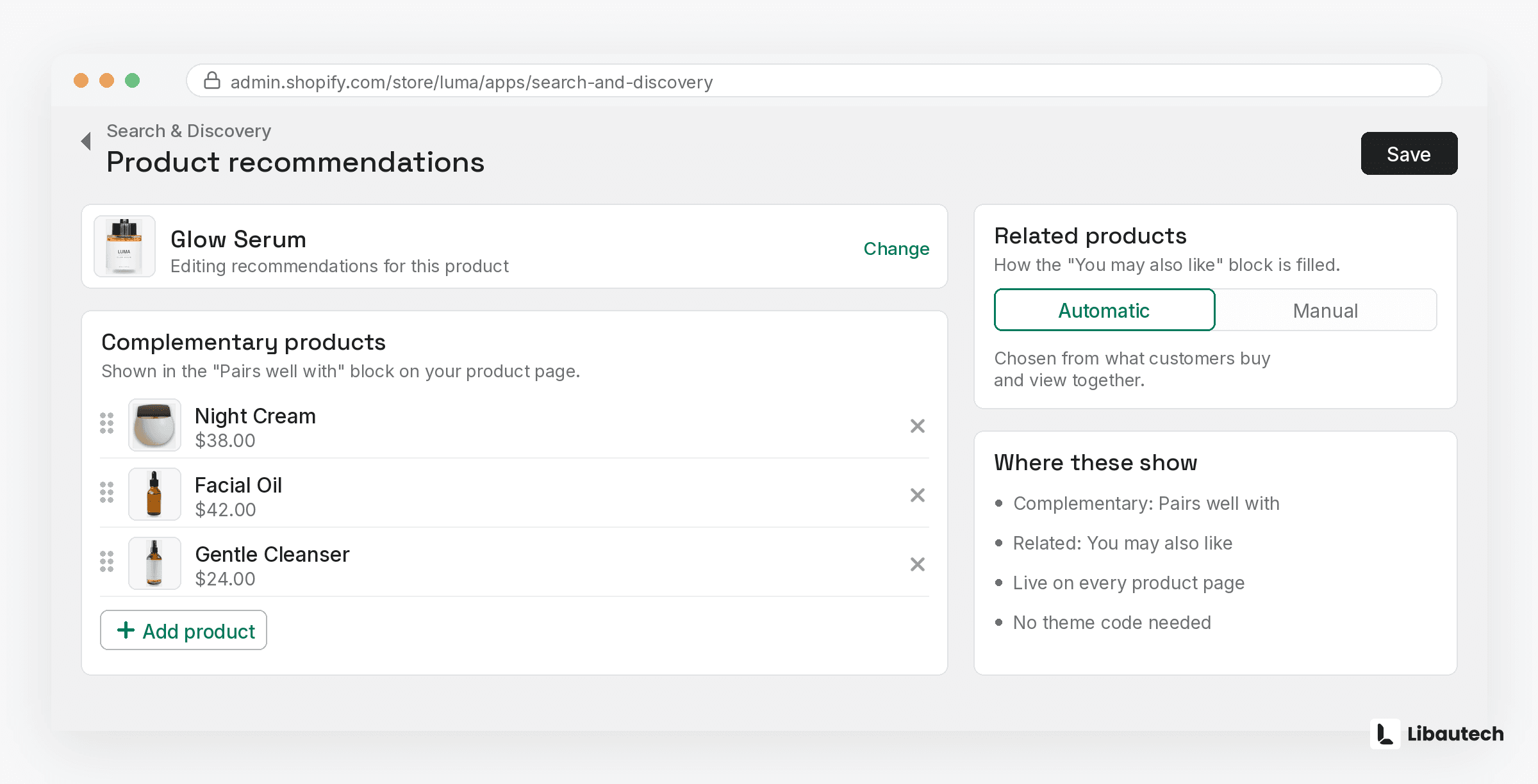
Shopify's free Search & Discovery app adds manual control on top of Method 1.
- Install Search & Discovery from the Shopify App Store (free, made by Shopify).
- Open the app and go to Product recommendations.
- Select a product and add up to 10 complementary products, which appear in the theme section from Method 1 as "Pairs well with".
- Repeat for your top sellers first, since they get the most traffic.
This solves the control problem but not the conversion problem: there is still no discount incentive and no combined add to cart, so the shopper has to click through to a second product page and add it separately.
Method 3: Use an upsell app for recommendations that sell
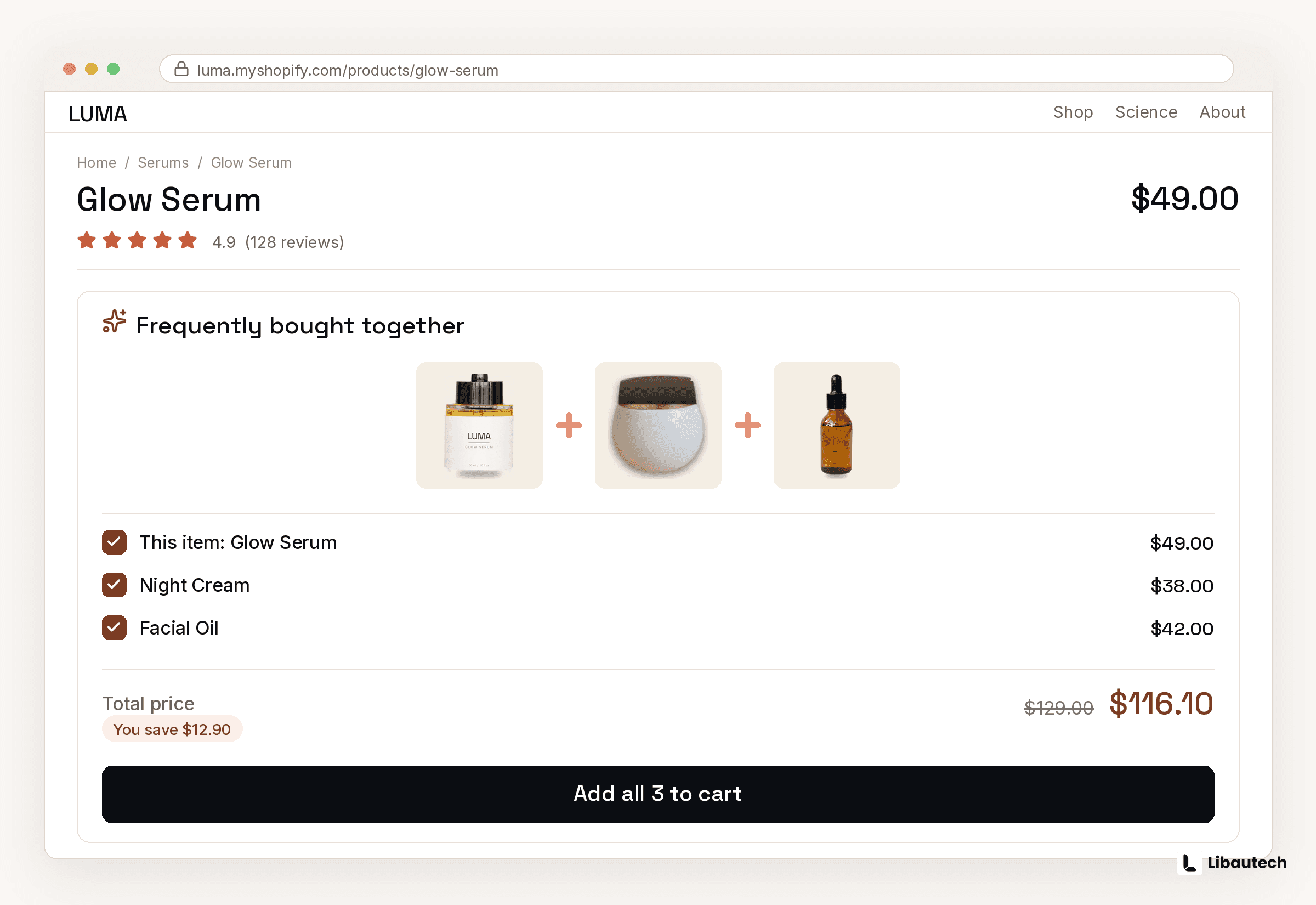
An upsell app turns recommendations into offers. With Libautech: Bundles & Upsell (5.0 rating, Built for Shopify, free plan available), you can show 3 recommendation formats on the product page:
- Frequently bought together: 2 or 3 paired products with a combined add to cart and an optional bundle discount.
- Product add-ons: checkbox-style complementary items, such as gift wrap, a refill, or a warranty, added without leaving the page.
- Bundle offers: fixed bundles, BOGO, or volume discounts presented directly on the product page.
Setup takes about 10 minutes:
- Install Libautech: Bundles & Upsell from the Shopify App Store.
- Create a new offer and choose the offer type, for example Frequently Bought Together.
- Select the trigger product and the recommended products, and set the discount if you want one. 5 to 10 percent is a sensible start.
- Adjust colors and layout to match your theme in the design settings.
- Publish and watch per-offer revenue in the analytics dashboard.
Which method should you use?
| Method | Best for | Cost |
|---|---|---|
| Method 1: theme recommendation section | Making the product page look complete with related items | Free |
| Method 2: Shopify Search & Discovery | Curating pairings when the wrong products show up | Free |
| Method 3: upsell app | Lifting average order value, with a 1-click add and an incentive | Free plan available |
Many stores run Method 1 low on the page for browsing and Method 3 near the buy button for conversion. That works as long as the two sections do not show the same products.
Use Method 1 if you just want the page to look complete. Use Method 2 if wrong pairings are showing and you need to curate them. Use Method 3 if the goal is average order value, because a recommendation without a 1-click add and an incentive leaves most of the revenue on the table. Many stores run Method 1 low on the page for browsing and Method 3 near the buy button for conversion, which works as long as the 2 sections do not show the same products.
3 mistakes to avoid
- Recommending products priced higher than the one being viewed. Complements should usually cost 10 to 50 percent of the main item.
- Placing recommendations above the Add to Cart button. It distracts from the primary purchase.
- Recommending out-of-stock or seasonal items. Review your manual pairs monthly.
First, recommending products at a higher price than the viewed product: complements should usually cost 10 to 50 percent of the main item. Second, showing recommendations above the add to cart button, which distracts from the primary purchase. Third, recommending out of stock or seasonal items, so review your manual pairs monthly.
Ready to turn recommendations into revenue? Install Libautech: Bundles & Upsell and launch a frequently bought together offer on the free plan.
Related guides: Upselling vs cross-selling, Best product recommendation apps, Best frequently bought together apps and How to upsell on Shopify.