How to Add Pre-Purchase Upsells to Shopify (2026 Guide)
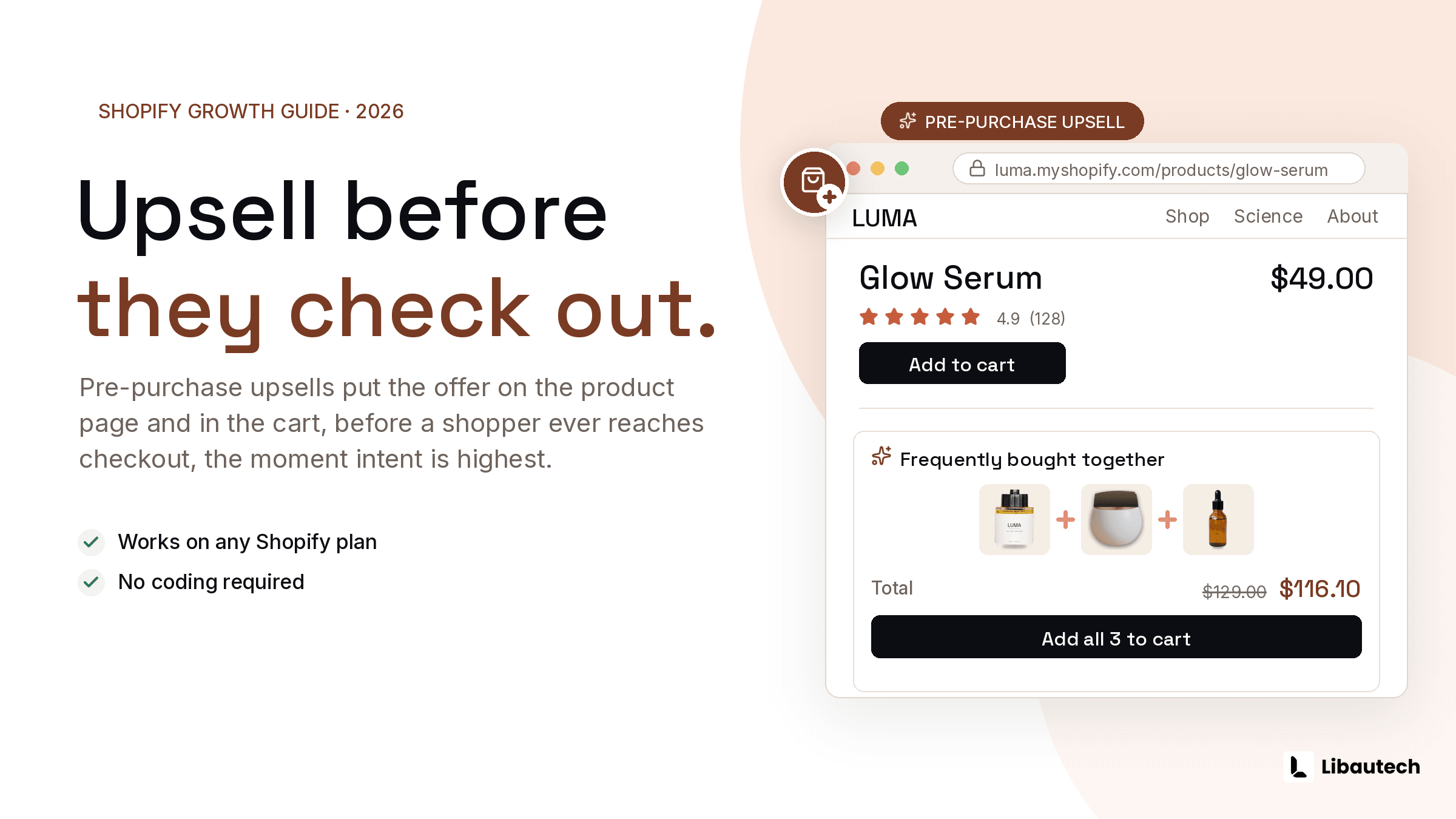
You can add pre-purchase upsells to any Shopify store by using an upsell app on the product page, cart drawer, or cart page, and Shopify Plus merchants can additionally place offers inside checkout using checkout UI extensions. The fastest route for most stores is a product page add-on plus a cart popup, which takes under 15 minutes to set up with an app like Libautech Bundles & Upsell and requires no code.
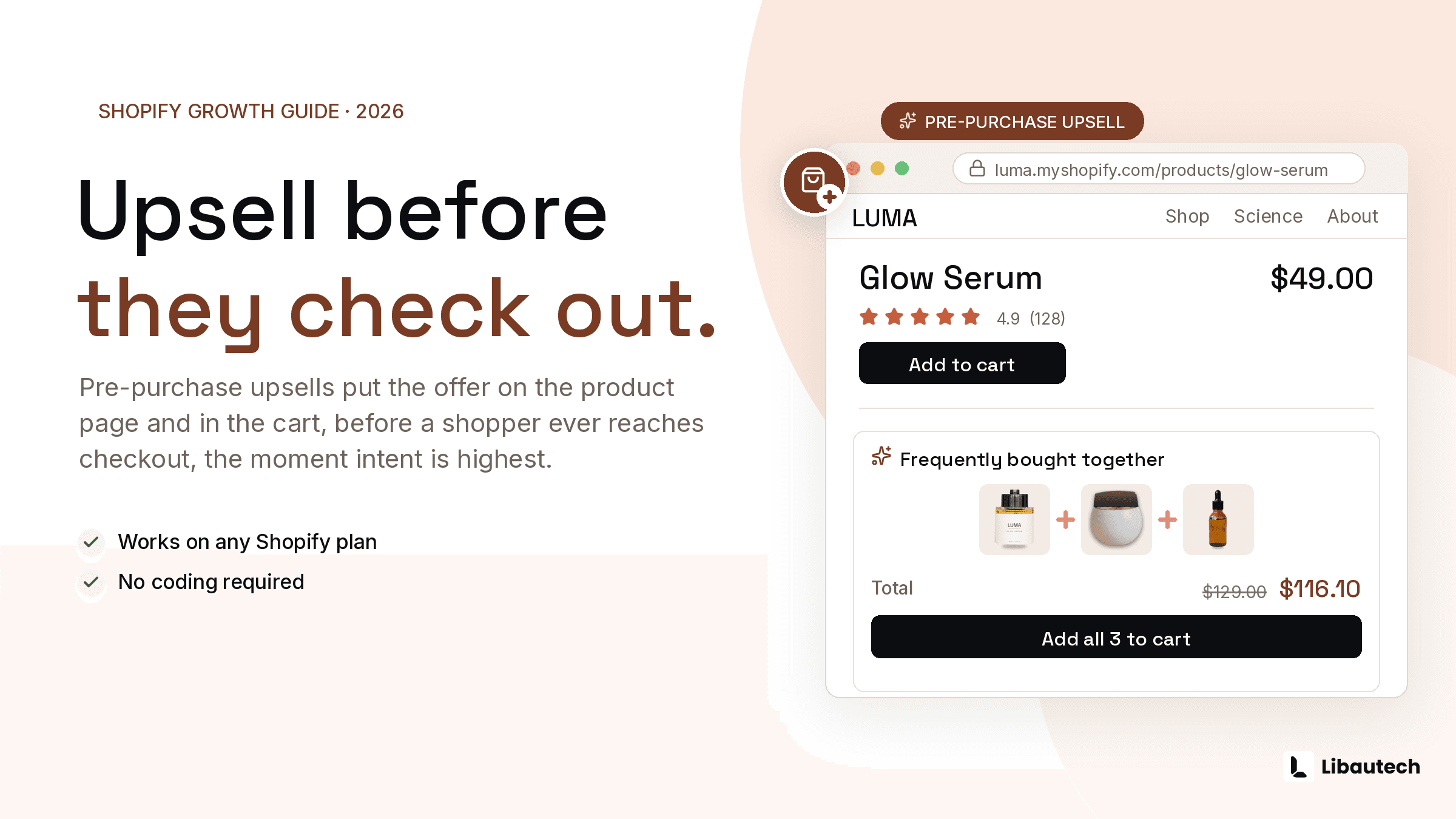
I have built upsell software for Shopify merchants since 2021, and the pattern I see repeat across thousands of stores is the same: the money is made before checkout, not after. This guide covers exactly where pre-purchase offers work, how to set them up on both standard and Plus plans, and how to avoid the mistakes that quietly kill conversion.
TLDR: Key Takeaways
- Pre-purchase upsells work on every Shopify plan. Only checkout page placement requires Shopify Plus. Product page, cart drawer, and cart page placements are open to everyone.
- The 3 highest-converting placements are the product page (add-ons, frequently bought together), the cart drawer or popup, and the cart page. Each catches the shopper at a different decision point.
- Keep the upsell under 25 to 50 percent of the main product price and make it a 1-click add. Every extra click or form field cuts acceptance.
- Track 3 numbers: upsell conversion rate, attach rate, and AOV. If AOV is flat after 30 days, change the offer, not the placement.
What Is a Pre-Purchase Upsell on Shopify?
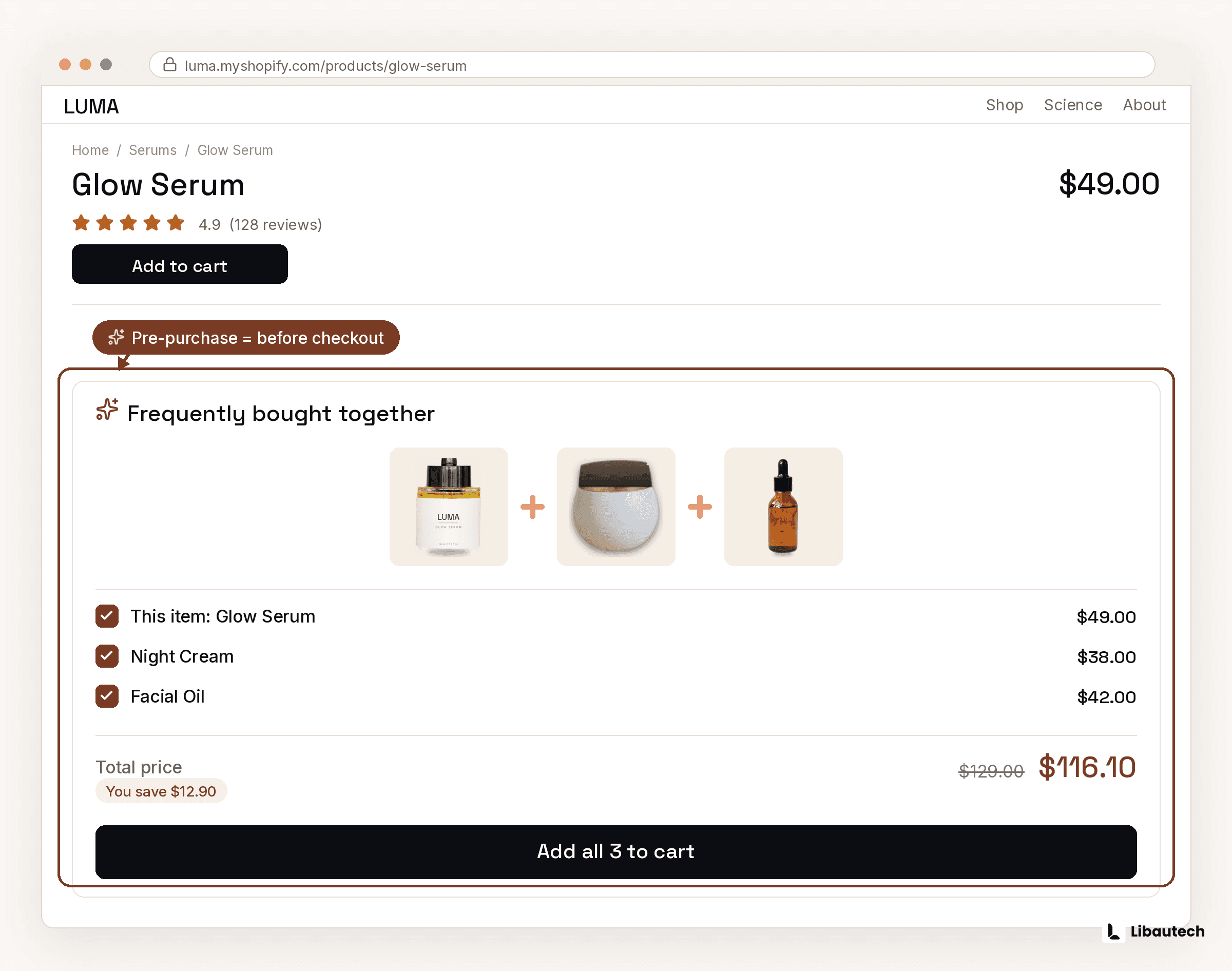
A pre-purchase upsell is an offer shown to a shopper before they complete payment. It appears on the product page, in the cart drawer, on the cart page, or inside checkout, and it invites the customer to add a related product, upgrade to a bigger size, or accept a bundle deal with 1 click.
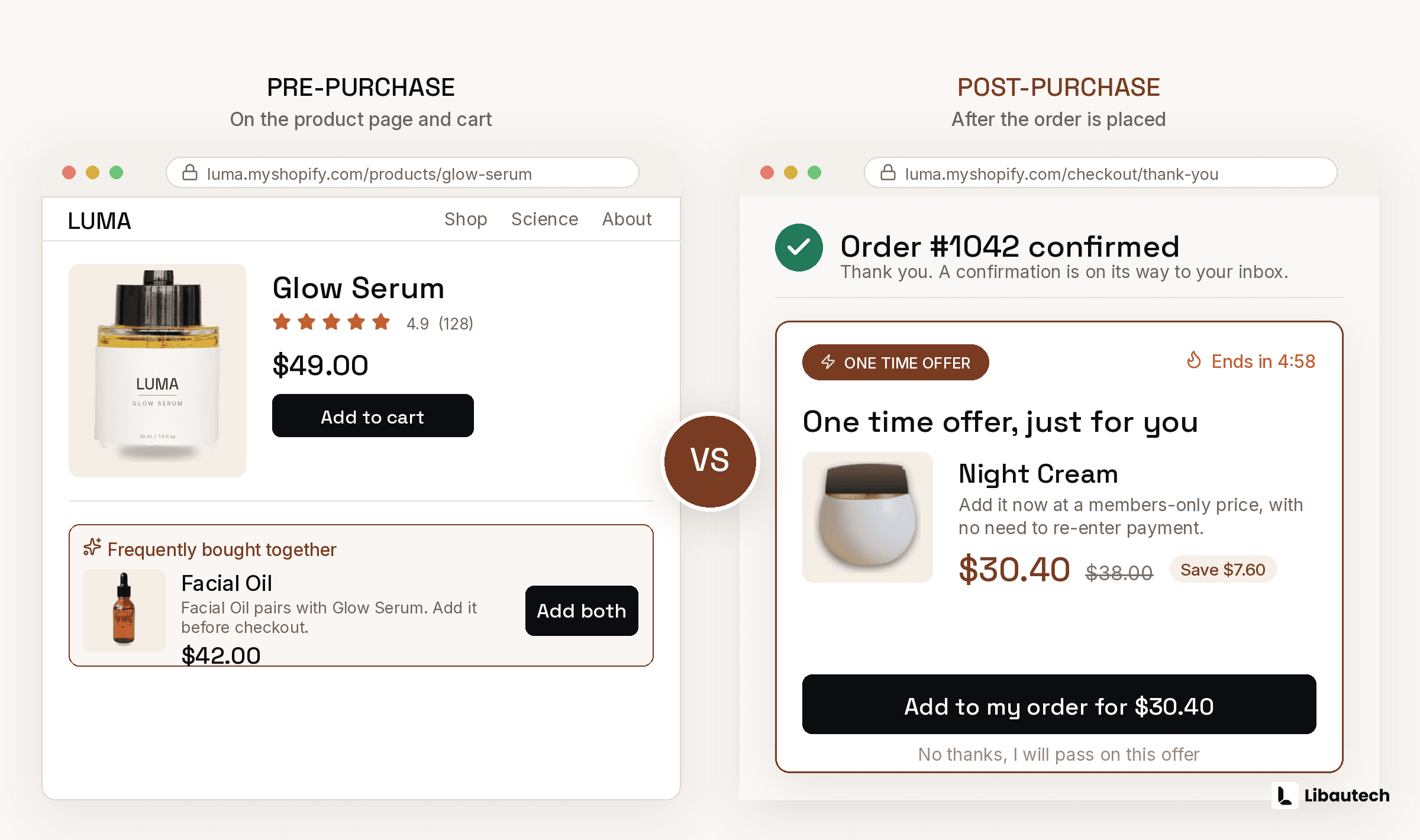
The distinction that matters is timing. A pre-purchase offer joins the order the customer is already building, so accepting it feels like part of the same decision. A post-purchase offer appears after payment and asks for a second, separate buying decision. Both have a place, and the commonly cited industry range says upselling and cross-selling together can lift average order value by 10 to 30 percent, but pre-purchase offers carry the initial transaction and deserve to be set up first.
Pre-Purchase vs Post-Purchase Upsells: Which Should You Set Up First?
| Pre-purchase upsell | Post-purchase upsell | |
|---|---|---|
| When it shows | Product page, cart, or checkout, before payment | Thank you flow, after payment |
| Customer mindset | Still building the order | Order already complete |
| Friction to accept | 1 click, joins the existing order | 1 click, but creates a second decision |
| Plan requirement | Any plan (checkout placement needs Plus) | Any plan |
| Risk to conversion | Can distract if overdone | Zero risk to the initial sale |
| Set up first? | Yes | Second |
Set up pre-purchase first because it compounds: a shopper who accepts a product page add-on can still see a cart offer, and both raise the order before a single post-purchase screen fires. Then layer post-purchase on top, since it carries zero risk to the original conversion; see our one-click upsell guide for that setup. Libautech Bundles & Upsell covers both sides from one dashboard, so you do not need 2 separate apps.
Can You Add Pre-Purchase Upsells Without Shopify Plus?
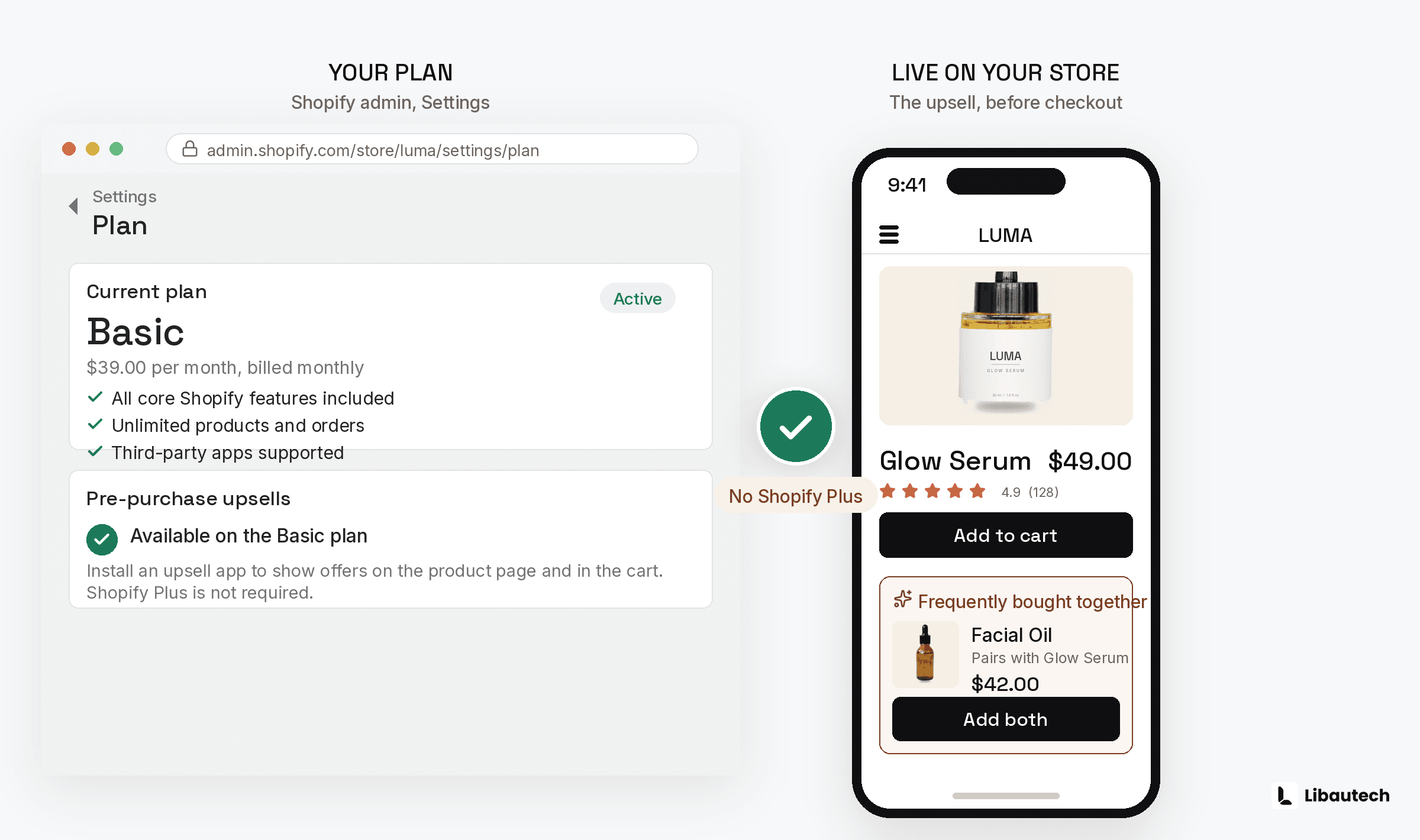
Yes. The only placement locked behind Shopify Plus is the checkout page itself, because standard plans cannot modify the multi-step checkout. Everything before checkout is fully open on Basic, Shopify, and Advanced plans:
- Product page add-ons and frequently bought together blocks.
- Cart drawer and cart popup offers that trigger on add to cart.
- Cart page recommendations shown while the shopper reviews the order.
In practice this is not much of a limitation. By the time a shopper reaches checkout, the highest-intent upsell moments have already passed. The add to cart click is the strongest buying signal in the whole session, and that moment belongs to the cart popup, which every plan can use.
How to Add Pre-Purchase Upsells to Shopify: Step by Step
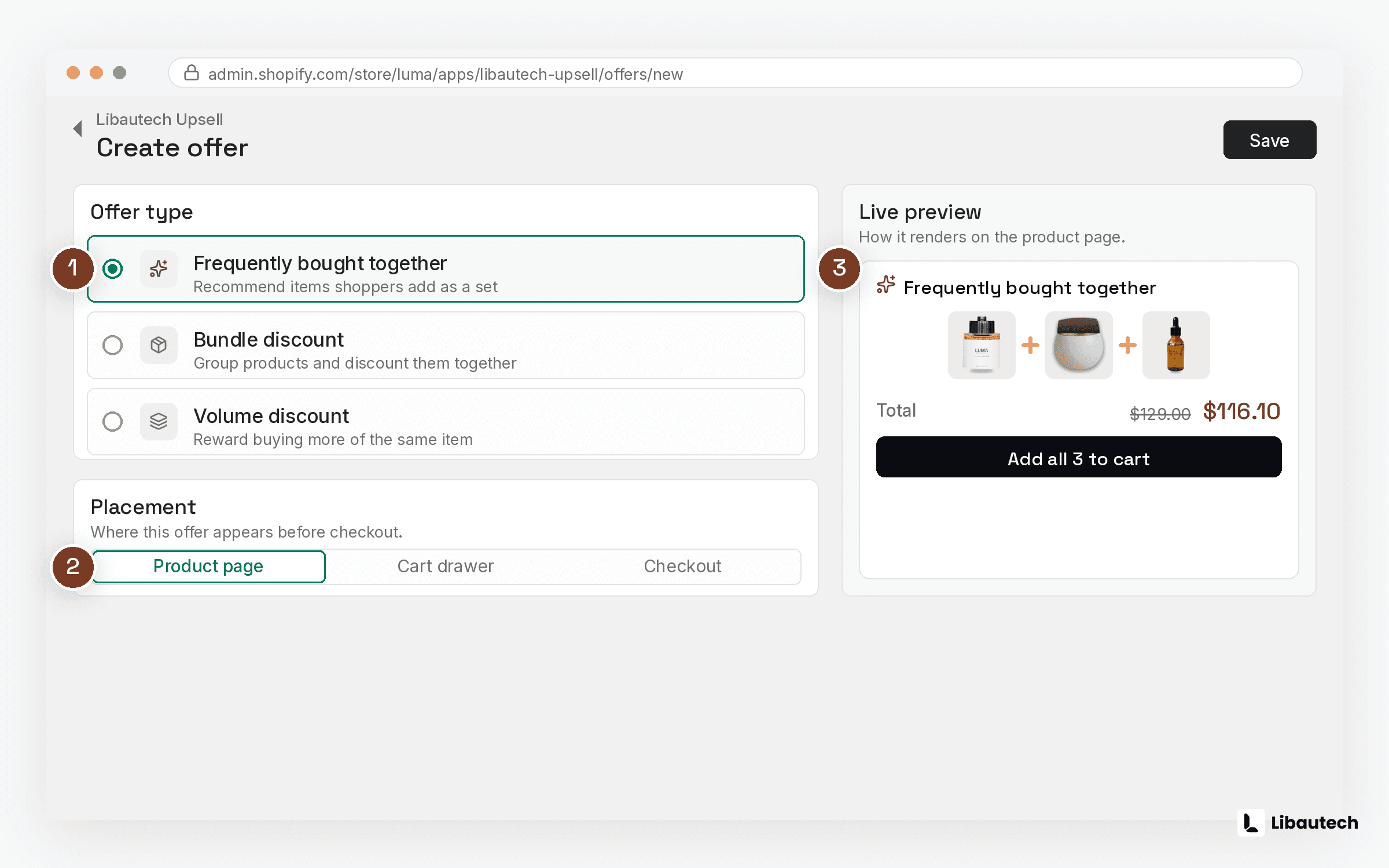
Here is the setup I recommend to merchants installing Bundles & Upsell, and the same logic applies to any well-built upsell app.
Step 1: Install an upsell app with pre-purchase placements
Pick an app that covers product page, cart drawer, and cart popup placements natively, carries the Built for Shopify badge so it meets Shopify's performance and integration standards, and works with Online Store 2.0 themes as app blocks rather than script injections. Libautech Bundles & Upsell checks all 3 and includes a 7-day free trial.
Step 2: Create your first product page offer
Start with a frequently bought together or add-on block on your 3 best-selling products. Pair each with 1 or 2 complementary items priced at 25 to 50 percent of the main product. A shopper looking at a 60 EUR jacket will consider a 15 EUR beanie. They will not consider a second 60 EUR jacket.
Step 3: Add a cart popup or drawer offer
Set the trigger to fire on add to cart. This is the single highest-intent moment in the session, so give it your strongest complementary offer or a volume discount (buy 2, save 10 percent); our cart drawer upsells guide goes deeper on this placement. Keep it to 1 offer per popup. Showing 4 products at once produces decision fatigue and a closed popup.
Step 4: Match the design to your theme
Adjust colors, fonts, and layout so the offer reads as part of the store, not as a third-party widget. Offers that look native convert measurably better because they read as a recommendation instead of an ad. In Bundles & Upsell this is done in the visual editor without code, and custom CSS is available when you need pixel control.
Step 5: Test the full flow before going live
Run a real test order. Check 4 things: the offer appears on the right products, the discount applies automatically without a code, the added item lands in the cart with 1 click, and the mobile layout does not cover the add to cart button. Then publish.
Step 6 (Shopify Plus only): Add a checkout upsell
Plus merchants can place 1 more offer inside checkout using checkout UI extensions. Keep this slot for low-cost, no-thought items: shipping protection, gift wrap, a consumable refill. The shopper is entering payment details, so anything that requires comparison shopping here will be ignored or, worse, will stall the purchase.
Where Should You Place Pre-Purchase Upsell Offers?
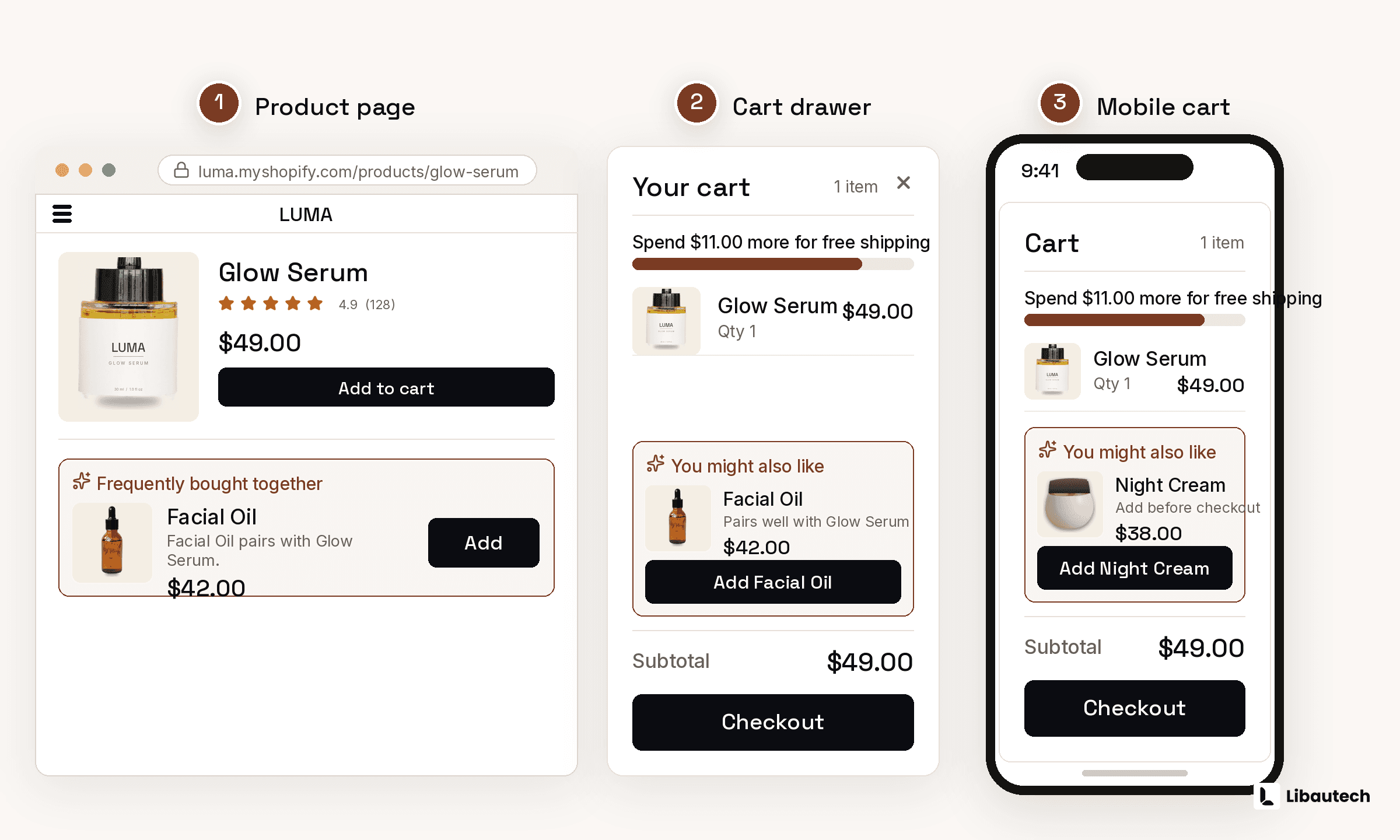
| Placement | Best offer type | Plan needed | When it fires |
|---|---|---|---|
| Product page | Frequently bought together, add-ons, volume bundles | Any | While the shopper is comparing |
| Cart popup / drawer | 1 complementary product or quantity break | Any | On add to cart, peak intent |
| Cart page | Free shipping threshold nudge, bundle completion | Any | While reviewing the order |
| Checkout | Shipping protection, gift wrap, small consumables | Shopify Plus | While entering payment details |
Do not run all 4 at maximum aggression from day 1. Start with product page plus cart popup, measure for 2 weeks, then add the cart page if AOV is moving.
How Do You Choose the Right Products to Upsell?
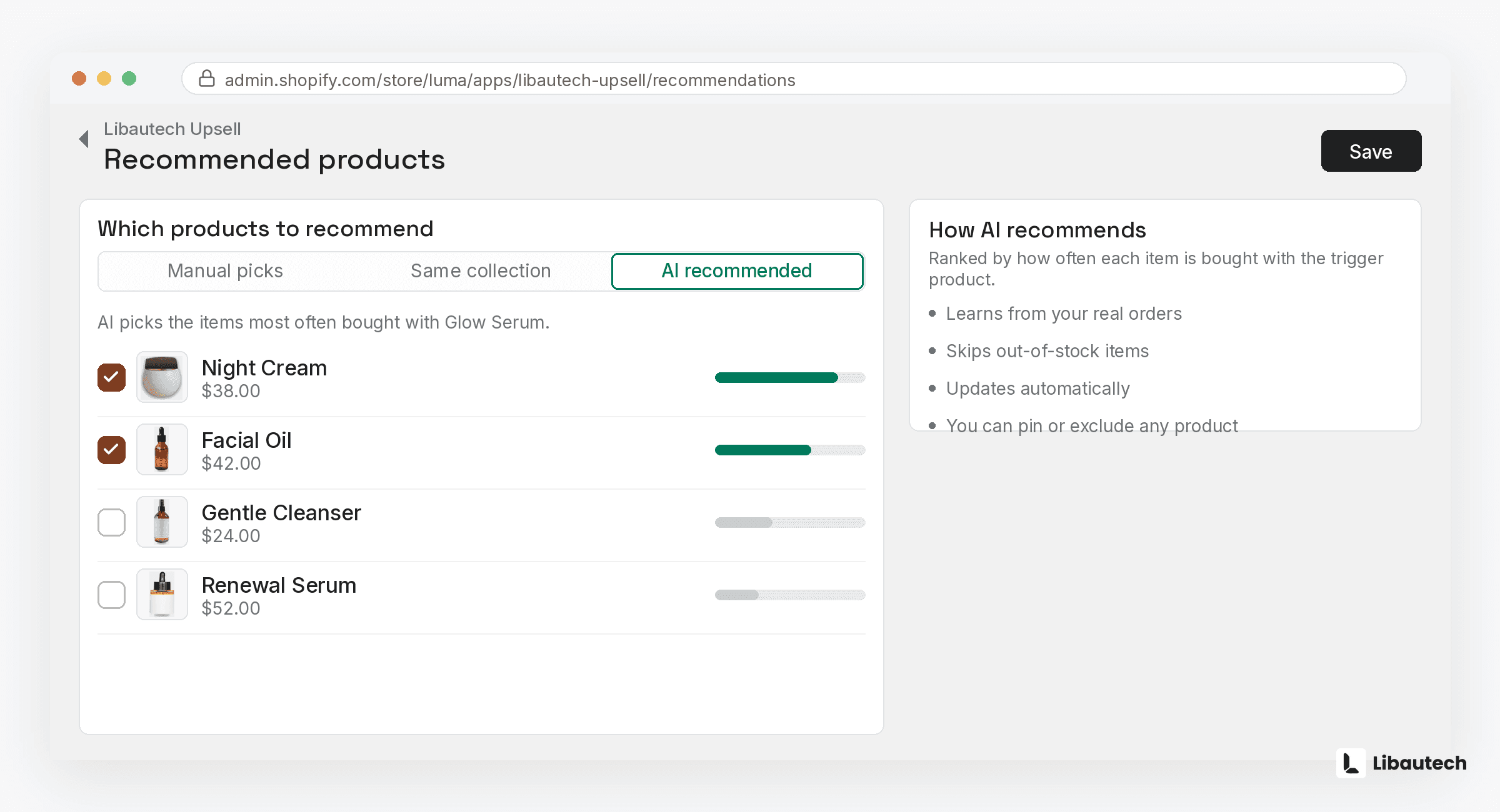
Three rules cover 90 percent of it.
- Complementary beats similar. Offer the item that completes the purchase (case for the phone, conditioner for the shampoo), not a competing alternative that reopens the decision.
- Price the offer at 25 to 50 percent of the cart item. Below that band the offer feels trivial, above it the offer becomes a second major purchase and stalls the checkout.
- Only offer what is in stock. An accepted upsell that turns out to be unavailable is worse than no upsell. Your app should read live inventory, and Bundles & Upsell does this automatically.
Your own order data is the best source of pairings. Open Shopify Analytics, look at what customers already buy together, and turn the top 5 pairs into offers. That beats guessing every time.
Which Mistakes Kill Pre-Purchase Upsell Conversion?
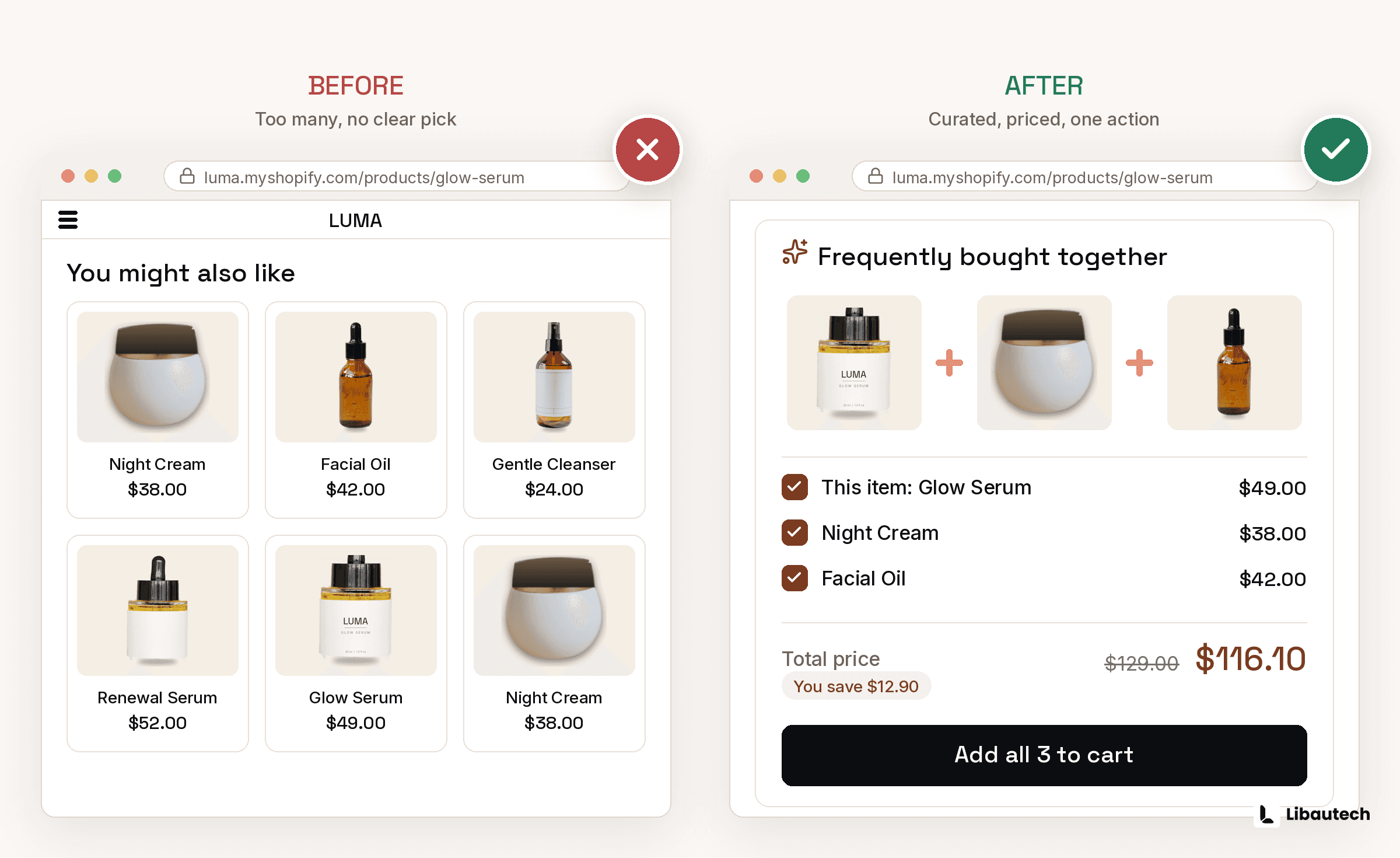
- Stacking too many offers. One offer per placement. A popup with 4 products converts worse than a popup with 1.
- Requiring extra steps. If accepting the offer needs a discount code, a page reload, or re-entering anything, acceptance collapses. It must be 1 click.
- Irrelevant recommendations. Socks offered with a phone case tells the shopper your recommendations are random, and they stop reading all of them.
- Aggressive copy. "WAIT! Don't leave without this" reads as desperation. "Complete the set" or "Frequently bought together" reads as help.
- Ignoring mobile. Over 70 percent of Shopify traffic is mobile. If your popup covers the checkout button on a 375 pixel screen, you are paying an app to lose you sales.
How Do You Measure Pre-Purchase Upsell Performance?
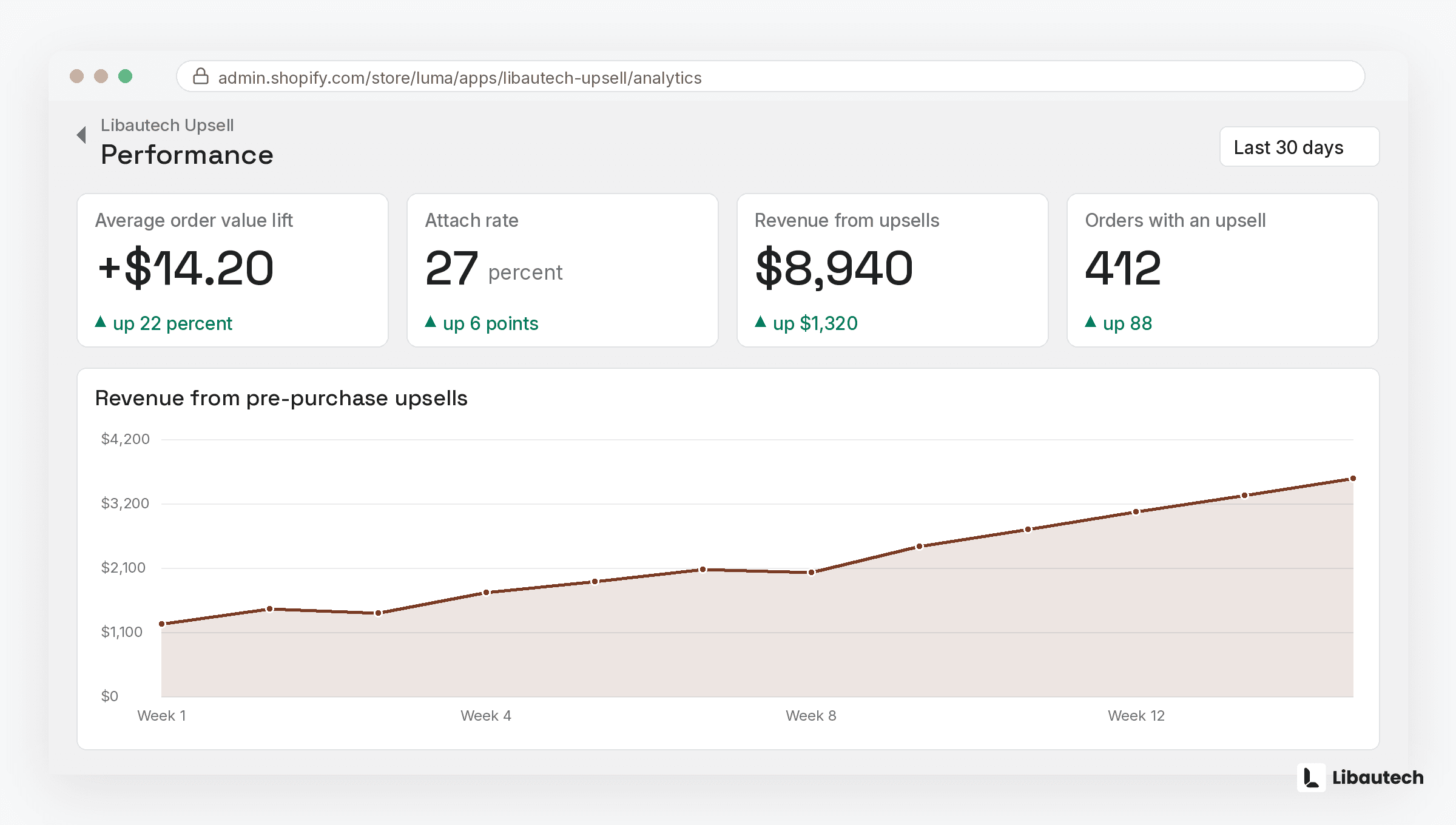
Track 3 metrics from day 1:
- Upsell conversion rate: accepted offers divided by offers shown. Anything above 5 percent on a cart popup is working; below 2 percent means the product pairing is wrong.
- Attach rate: orders containing an upsell item divided by total orders. This shows how much of your order flow the offers actually touch.
- AOV before and after. The end goal. Compare the 30 days after launch to the 30 days before, and account for seasonality.
Then iterate. Test a different companion product, a different discount depth, different copy. Change 1 variable at a time and give each test at least 2 weeks of data. Built-in analytics that break revenue down by offer, like the reporting in Bundles & Upsell, make this loop fast enough that you will actually do it.