How to Set Up Buy with Prime on Shopify (2026 Guide)
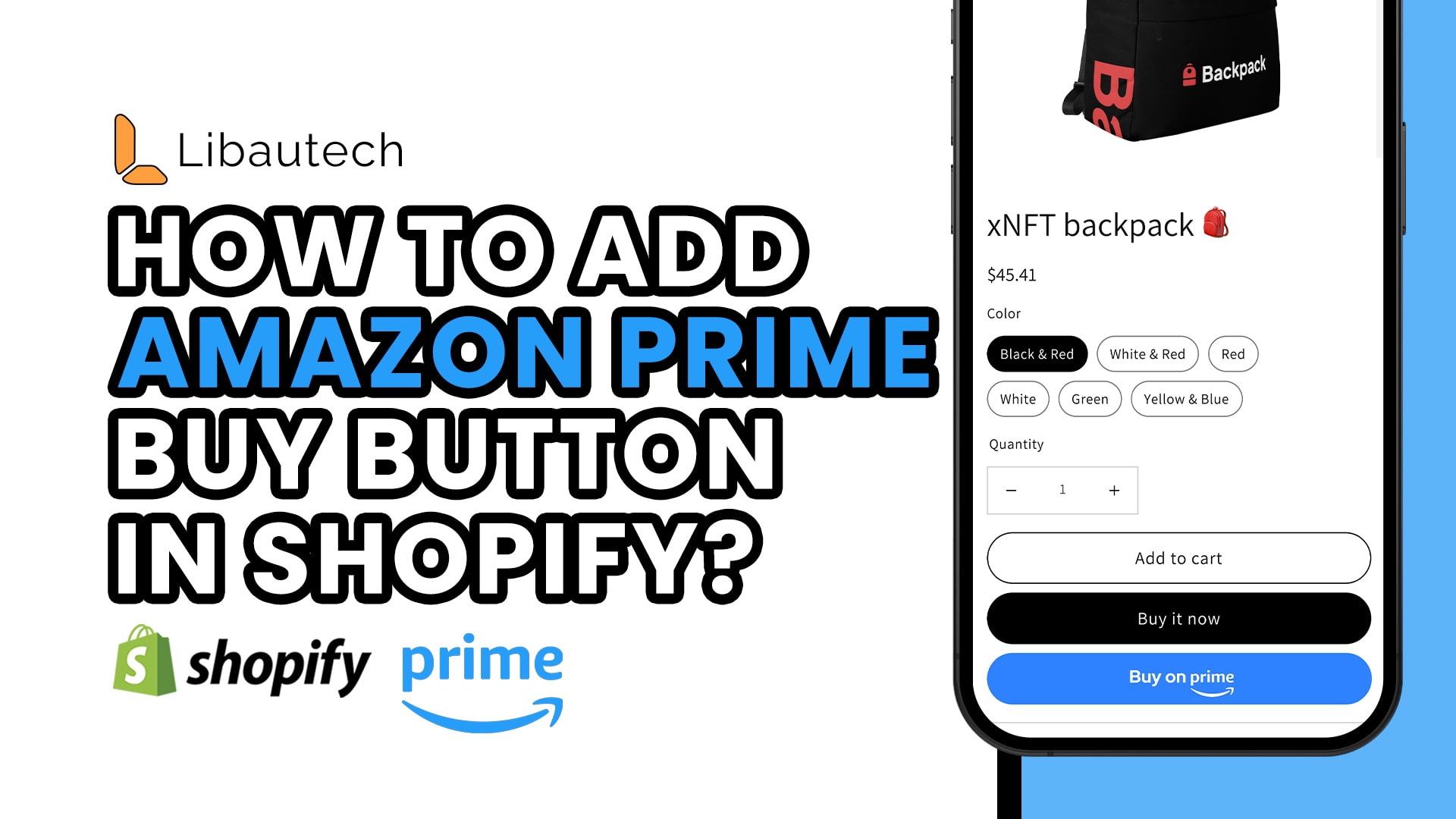
Short answer: you set up Buy with Prime on Shopify by installing Amazon's own app, Amazon MCF and Buy with Prime, connecting your Amazon seller account, getting your stock into Amazon's fulfillment network and mapping your Shopify SKUs to it. It is only open to US businesses. If you do not qualify, or you just want shoppers who trust Amazon to buy your product there, a Buy on Amazon button does that job in a few minutes. Both routes are below.
Buy with Prime or a Buy on Amazon button: which do you need?
The two get mixed up all the time, including in a lot of guides.
- Amazon Buy with Prime is Amazon's program. Prime members see the Prime badge and delivery promise on your own store, check out with their Amazon details, and Amazon picks, packs and ships the order from its warehouses. The order is yours, on your site.
- A Buy on Amazon button sends the shopper from your product page to your product's Amazon listing, where they buy it on Amazon. Nothing about your checkout or fulfillment changes.
| Buy with Prime | Buy on Amazon button | |
|---|---|---|
| Where the sale happens | On your Shopify store | On Amazon |
| Who can use it | US businesses only | Any store, any country |
| Stock in Amazon's warehouses | Required | Not required (you need an Amazon listing) |
| Amazon seller account | Required (US) | Only if you sell the product on Amazon yourself |
| App | Amazon MCF and Buy with Prime (by Amazon) | An Amazon button app, such as Libautech Amazon Buy Button |
| Cost | Free to install; Amazon charges fulfillment and Buy with Prime fees per order | Free plan; paid plans from $9.99/mo |
| Setup time | Days to weeks (stock has to reach Amazon) | Minutes |
Who can use Buy with Prime
Check these before you install anything. Buy with Prime is only available to businesses with a United States based entity, and you connect it with a US Amazon seller account. Expect to need:
- A US business and a US Amazon selling account (Seller Central, or an Amazon Supply Chain account if you do not sell on Amazon).
- Your inventory in Amazon's fulfillment network (FBA). Amazon ships your Buy with Prime orders from the same stock pool it uses for Amazon.com orders.
- A US store selling to US addresses in US dollars.
Amazon keeps the full, current list on its Buy with Prime requirements page. Read it first: payment and checkout requirements change, and they decide whether the rest of this is worth doing.
How to set up Buy with Prime on Shopify, step by step
These steps follow Amazon's own setup guide for the app.
Step 1: Install Amazon MCF and Buy with Prime
Open the Shopify App Store and install Amazon MCF and Buy with Prime. It is published by Amazon and is free to install. It is one app for two things: Multi-Channel Fulfillment (Amazon ships your Shopify orders) and Buy with Prime (the Prime experience on your store, US only).
Step 2: Connect your Amazon seller account
Launch the app and sign in with your Amazon seller account. Use the account for the country you are setting up. If you are new to Amazon, create a Seller Central account and set up FBA if you also plan to sell on Amazon, or an MCF account if you only want Amazon to fulfill your own store's orders.
Step 3: Get your inventory into Amazon's network
If your stock is already with FBA, there is nothing to move. If not, add the products to your FBA inventory and ship them to Amazon with Send to Amazon. This is the slow step: Buy with Prime cannot promise Prime delivery on stock Amazon does not hold.
Step 4: Map your Shopify SKUs to Amazon SKUs
The app has to know which Shopify product is which Amazon product. If your SKUs match in both places, it maps them automatically. Where they differ, search for the Shopify SKU in the app and enter the matching Amazon SKU by hand.
Step 5: Set up shipping
Shoppers only see the shipping options you configure in Shopify. Create a shipping profile for Amazon's fulfillment, set rates on the location called Amazon Fulfillment, then in the app map each Shopify shipping option to an Amazon shipping speed. To have Amazon fulfill orders automatically, set up order processing in your Shopify settings or use Shopify Flow.
Step 6: Turn on Buy with Prime for your products
With fulfillment working, enable Buy with Prime in the app for the products you want to offer it on. Starting with a handful of best sellers is sensible: you can see the effect on conversion and fees before rolling it out to everything. Then place a test order as a Prime member to check the badge, delivery promise and checkout on your live product page.
What Buy with Prime costs
The app is free to install. You pay Amazon per order: fulfillment fees for picking, packing and shipping, a Buy with Prime service fee, and monthly storage for the stock in Amazon's warehouses. Fees change during the year, so take current figures from Amazon's Buy with Prime pricing rather than from any guide, this one included, and work them out against your margin per order before you switch it on store-wide.
Common problems
- The Prime option does not show at checkout. Checkout only shows shipping options from your Shopify shipping profile. Check the profile for the Amazon Fulfillment location has rates set and that those rates are mapped to an Amazon speed in the app.
- A product will not fulfill. Usually an unmapped SKU, or stock that has not been received at Amazon yet.
- Returns. Returns are not handled inside the app. You process them through Shopify, or use Amazon's MCF returns process if you want items sent back to Amazon.
- You are not in the US. Buy with Prime is not available to you yet. Amazon's app still offers Multi-Channel Fulfillment in other markets, and the button below works anywhere.
If you do not qualify: add a Buy on Amazon button
Most Shopify merchants who search for Buy with Prime are outside the US, do not keep stock with Amazon, or simply want to stop losing the shopper who would rather buy on Amazon. For them a Buy on Amazon button is the practical answer. It sits on your product page and sends that shopper to your Amazon listing, so the sale stays yours instead of going to whoever else sells the product there.
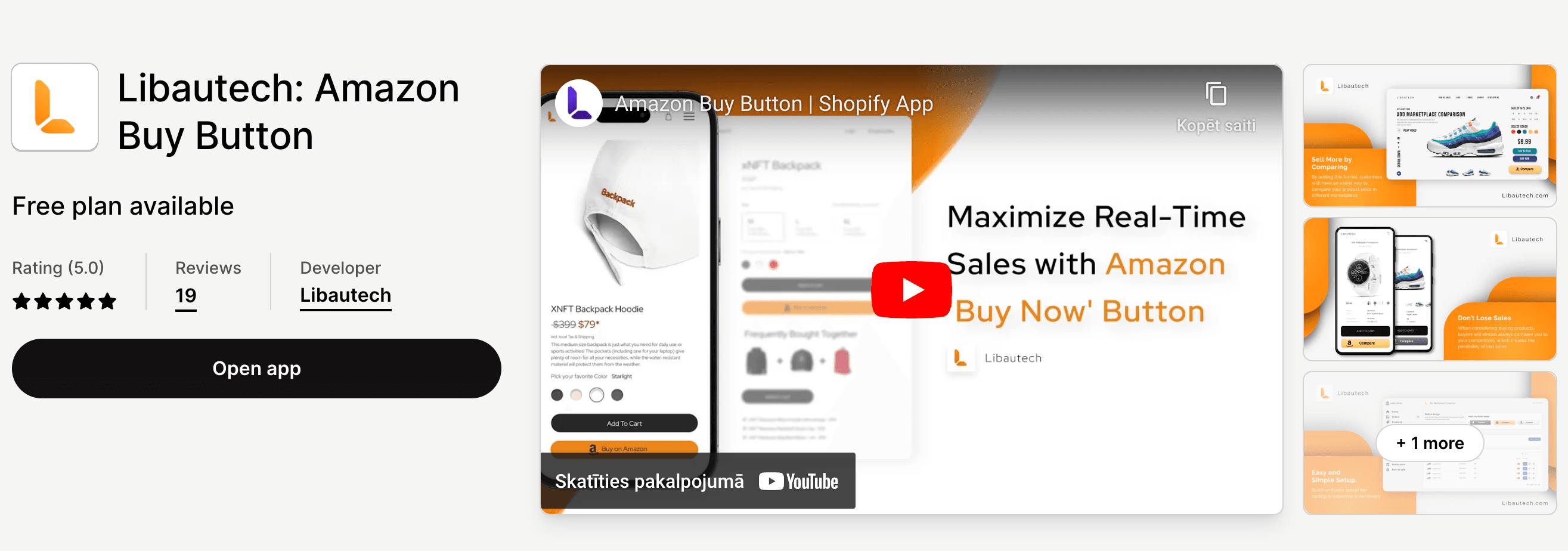
With the Libautech Amazon Buy Button app it takes a few minutes:
- Install the app from the Shopify App Store. There is a free plan.
- Open the Marketplace section and choose the Prime option, so the button carries the Prime badge Amazon shoppers look for.
- Select the product you want the button on.
- Paste the product's Amazon link and click Save and Enable.
- Match the button to your theme by changing its color.
A few things the button can do that Buy with Prime does not: it works on any Amazon marketplace (Amazon.com, .co.uk, .de, .co.jp and others), sends each visitor to the marketplace for their country, and can carry your Amazon Associates tag so you earn the referral fee on the sale as well.
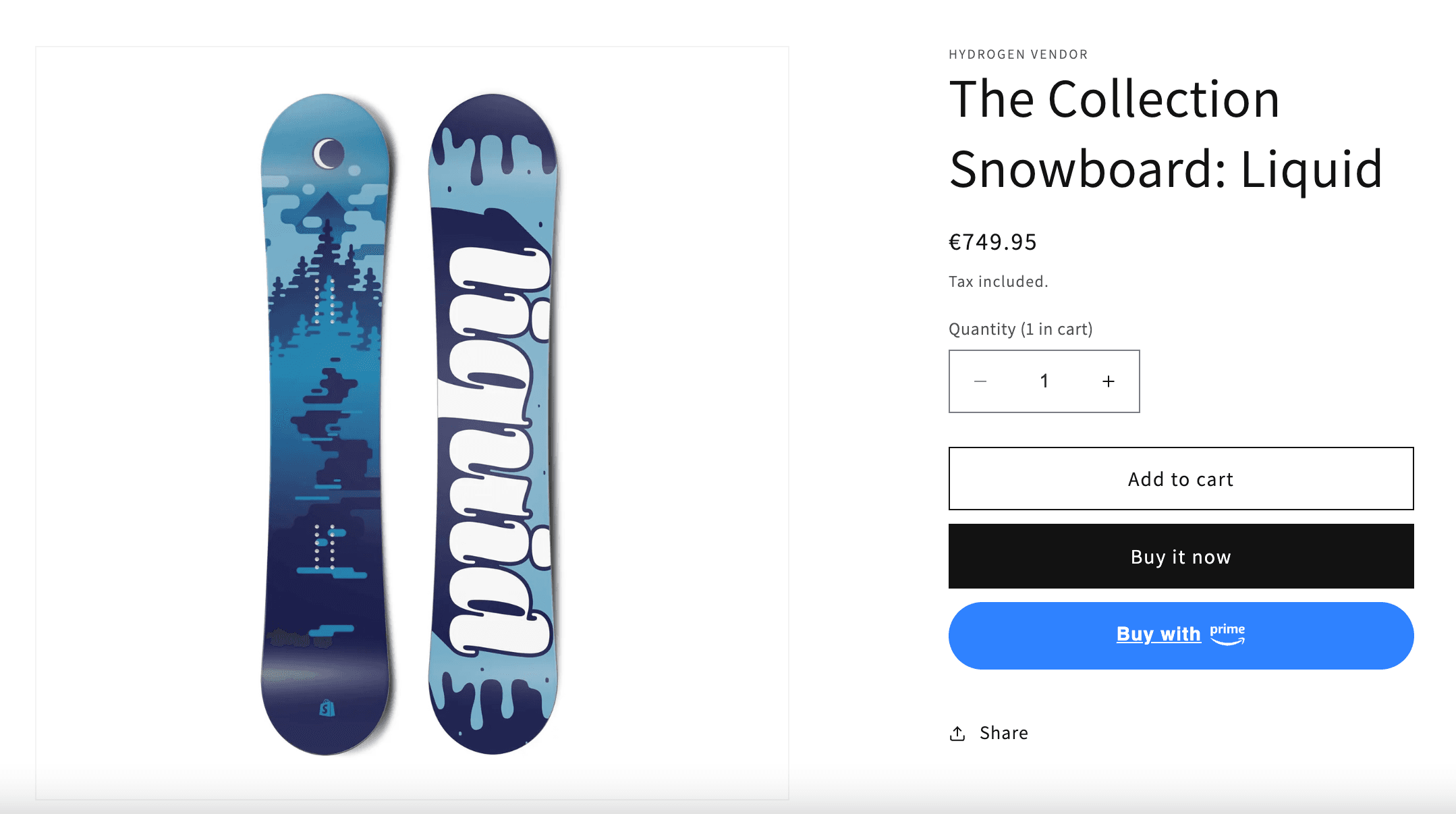
What it does not do: the purchase happens on Amazon, not in your Shopify checkout, and Amazon handles delivery under its own terms. If you qualify for Buy with Prime and want Prime on your own checkout, use Amazon's app. If not, the button gets you most of the benefit today: the shopper buys with Amazon trust, and with Prime delivery wherever your listing has it.
See the Amazon Buy Button app, or read our guide to adding an Amazon buy button to Shopify.