


.webp)
Every product page has the same problem. The customer scrolls down to read your description, checks your reviews, looks at your photos — and by the time they are ready to buy, the Add to Cart button is far above them. Scrolling back up breaks the flow and costs you conversions.
A sticky add to cart button solves this in one move. It keeps your purchase button visible at all times, no matter how far down the page the customer scrolls. This guide covers the complete setup process for the Libautech Sticky Add to Cart app — from installation through advanced configuration.
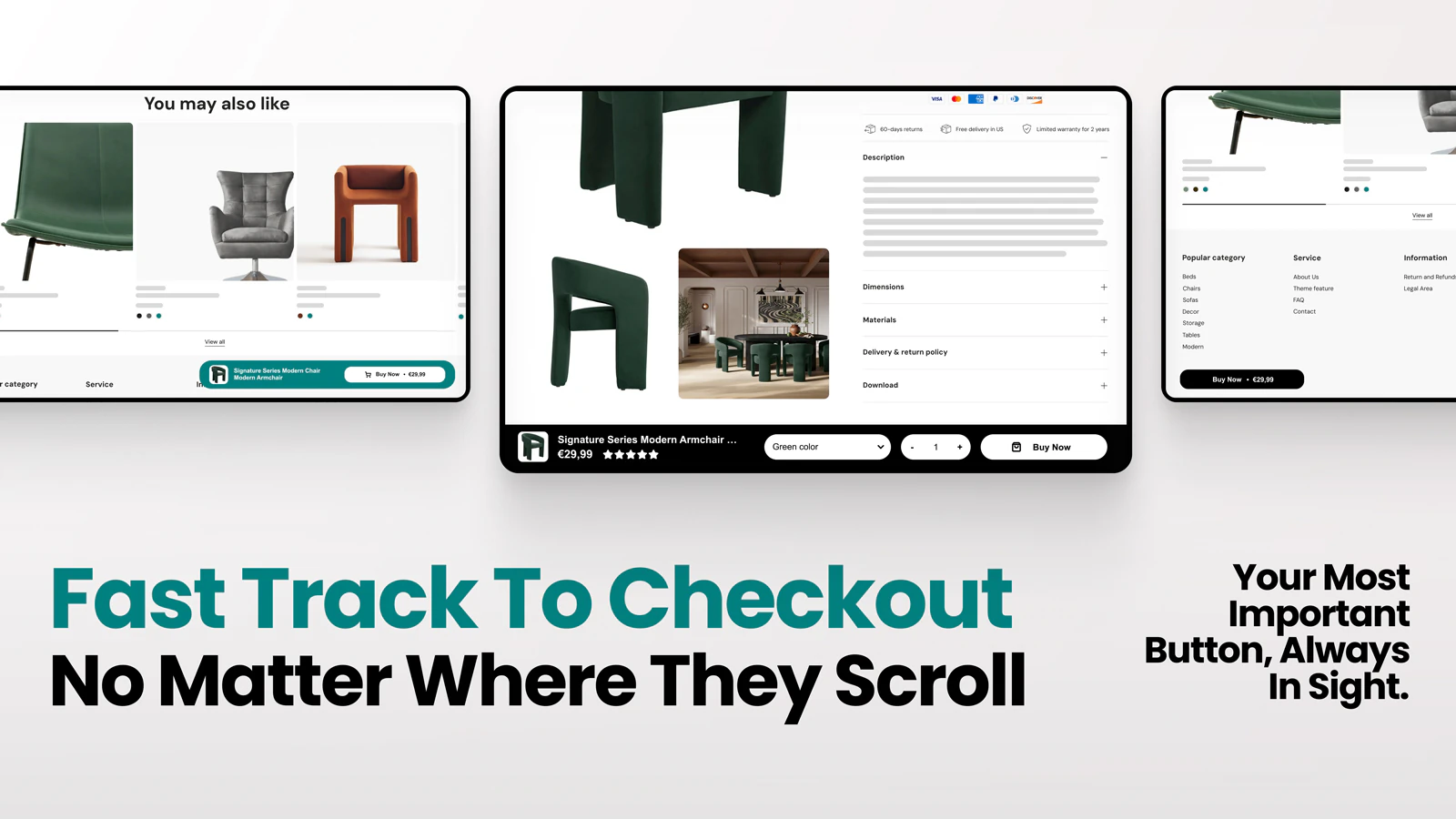
Libautech Sticky Add to Cart is a Shopify app that displays a persistent add-to-cart bar or button on your product pages. As the customer scrolls, the bar stays fixed to the bottom (or top) of the screen, giving them a one-click path to checkout from any point on the page.
Key facts about the app:
Libautech Sticky Add to Cart offers two paid plans with a free trial included on both:
There is also a free plan available for stores getting started, which gives you access to the core sticky button functionality with a limited number of clicks per month.
Go to the Shopify App Store listing for Libautech Sticky Add to Cart. Click "Add app" and follow the authorization prompts. Shopify will ask you to confirm the permissions the app needs to function — approve them and wait for the confirmation screen. Once installed, the app will appear under the Apps section in your Shopify admin.
Open the app from your Shopify admin. You will see the main dashboard with an overview of your current performance stats and access to the configuration panels. The main sections are:
Start by making sure the app is enabled. The main toggle on the dashboard controls whether the sticky bar shows on your store. Turn it on before proceeding with any design work.
Mobile accounts for roughly 60 percent of Shopify traffic, so mobile configuration is the highest-priority step. In the design settings, select the mobile tab and choose from the 18 available preset designs. Each preset gives you a different layout — some show just the button, others include product image, title, and price.
Choose a preset that matches your store's color scheme. After selecting a preset you can customize:
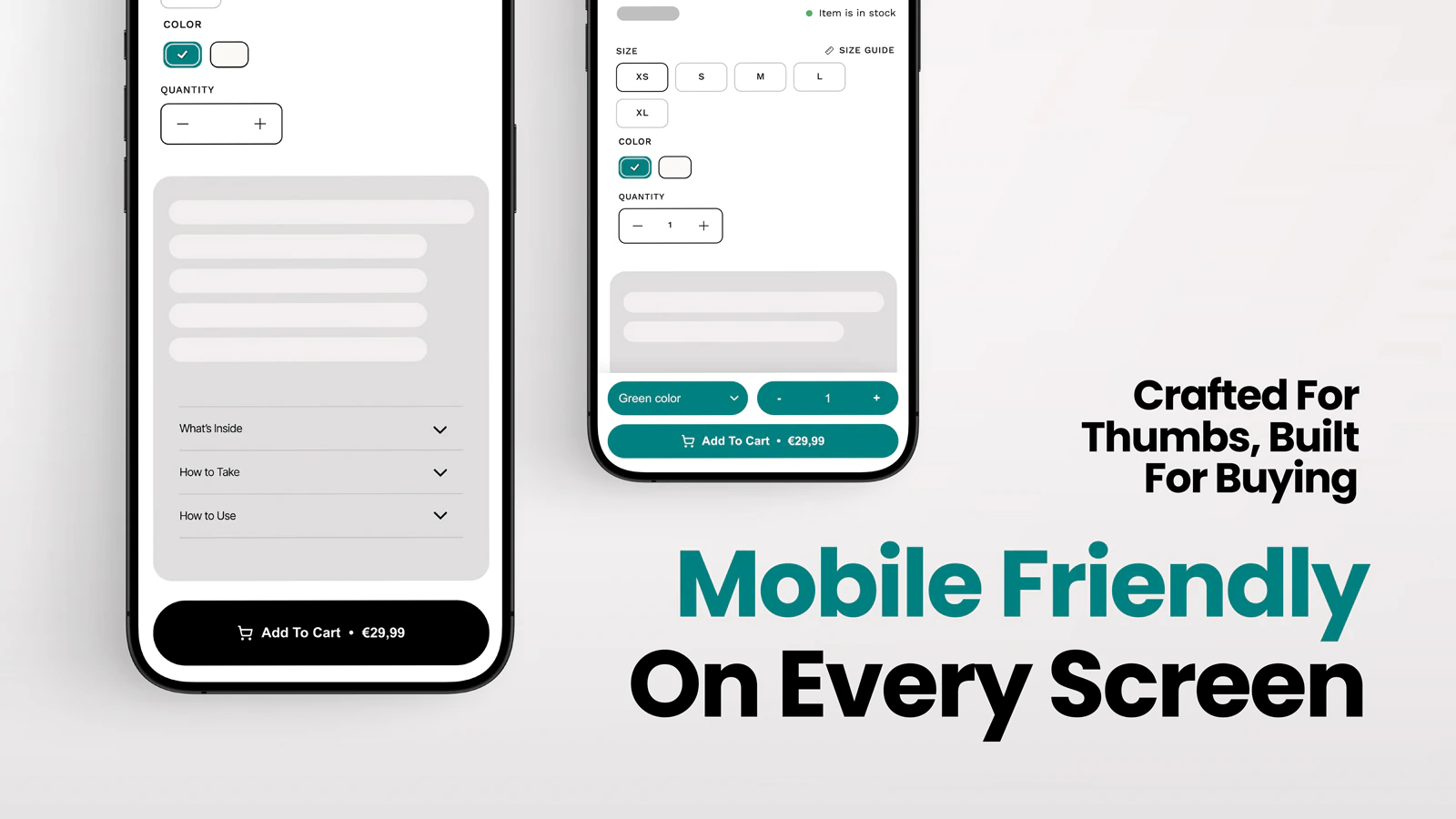
Save your mobile settings before switching to desktop.
Switch to the desktop tab in the design settings and repeat the configuration process. Desktop users interact differently than mobile users — they have more screen space, and the sticky bar can afford to show more information without feeling crowded. The 18 desktop presets reflect this, offering wider layout options with more visible product detail.
The most effective desktop sticky bar setup includes the product image, title, price, and variant selectors alongside the Add to Cart button. This gives desktop shoppers everything they need to make the purchase decision without scrolling anywhere.
Attention badges are short urgency or social-proof messages that appear on the sticky bar. They are designed to push customers from browsing to buying by adding context to the purchase decision.
Examples of effective badge copy:
To set these up, navigate to the badge settings within the app. You can write custom text, choose the badge color, and configure whether the badge should pulse or animate to draw attention. Keep badge copy short and honest — generic or exaggerated urgency messages reduce trust over time.
By default, the sticky bar appears on all product pages. If you want to restrict or expand its behavior, the display rules section gives you control over:
The most common and highest-performing setup is: show on all product pages, triggered after scrolling past the original button, on both mobile and desktop.
Before driving traffic to your product pages, test the sticky bar end to end:
If you see any overlap with other elements, adjust the z-index setting in the app until the layering looks correct.
The app includes a built-in analytics panel that shows you views, clicks, and conversions attributed to the sticky bar. Check this data after the first 7 to 14 days of running the app.
Metrics to focus on:
For stores looking to increase average order value alongside conversion rate, pairing the Sticky Add to Cart app with the Libautech Smart Upsell app is the most effective combination in the Libautech portfolio.
The Sticky bar handles the first click — getting the product into the cart. The Smart Upsell app then handles the next step — suggesting complementary products as add-ons below the buy button, in the cart, or as a post-purchase offer. Together they cover the full purchase funnel on the product page without requiring any code.
The Bundle plan at $14.99/month gives you access to both apps, making it the better value for most stores that want to run both features simultaneously.
Check that the app toggle is enabled in the dashboard. If the toggle is on but the bar is still not showing, clear your browser cache and reload the product page. If the issue persists, check for JavaScript conflicts with your theme or other apps. The Libautech support team is available via live chat inside the app and can diagnose theme conflicts quickly.
Enable variant sync in the app settings if it is not already on. If you are using a heavily customized theme with non-standard variant markup, contact support — they handle custom theme compatibility fixes regularly.
Adjust the z-index setting in the app's position configuration. Most chat widgets use a z-index between 9999 and 2147483647 — set the sticky bar's z-index slightly below the chat widget value to resolve the overlap.
Most merchants complete the full setup including mobile and desktop configuration, badge setup, and a test in under 15 minutes. No coding is required at any point.
The app loads asynchronously, meaning it does not block your page from rendering. The performance impact on page load time is minimal and will not affect your Core Web Vitals score in a meaningful way.
The app is tested across 50+ Shopify themes including Dawn, Debut, Brooklyn, Minimal, and most premium themes. If you experience a conflict with a custom or niche theme, the support team can apply a compatibility fix.
Yes. You can configure the sticky bar to show either Add to Cart, Buy Now, or both buttons. The Buy Now option takes customers directly to checkout, which works well for high-intent product pages where you want to minimize steps to purchase.
Both the Pro and Bundle plans include a 7-day free trial. You can install and fully test the app before your billing begins.
Live chat support is available directly inside the app dashboard. You can also reach the team by email at support@libautech.com.
The Sticky Add to Cart app is one of the simplest, highest-impact changes you can make to a Shopify product page. The setup takes minutes, it requires no code, and the conversion impact shows up in your analytics within days.
Install Libautech Sticky Add to Cart on the Shopify App Store.
